Bulistio - Business Listing / Directory APP (Flutter)
Bulistio is a comprehensive Business Listing / Directory Mobile Application built with Flutter. Users can discover and explore business listings, search for services, view detailed business information, add products to cart, place orders, and connect with local businesses through a beautifully designed native mobile experience.
The app features flexible location-based search with support for countries, states, and cities, allowing users to find businesses in their area or explore services in different regions. Users can filter listings by location, category, price range, and other criteria to quickly find exactly what they're looking for.
Key App Features
Featured Listings: Featured businesses receive prime visibility by being highlighted on both the search page and home page, significantly increasing their exposure to potential customers through visually distinctive cards and premium placement.
Claim Listing Feature: The platform includes a powerful claim listing functionality where the actual business owner can claim an existing listing through the mobile app, providing necessary verification information through an integrated form builder to take complete control of the listing, ensuring data accuracy and legitimacy.
Multivendor Shop: Bulistio includes an integrated multivendor shop feature where vendors can sell digital and physical products directly through the mobile app. Users can browse products with beautiful masonry grid layouts, add items to cart, apply coupons, and complete purchases using multiple payment gateways including Cash on Delivery (COD) and 24+ online payment options (PayPal, Stripe, Razorpay, Flutterwave, Paystack, Mollie, and more).
Mobile App Features
Advanced State Management: Built with Provider architecture for efficient state management, ensuring smooth performance and real-time updates across all screens with dedicated providers for filters, cart management, checkout flow, and notifications.
Real-time Push Notifications: Integrated with Firebase Cloud Messaging (FCM) and OneSignal for instant push notifications. Notifications are intelligently categorized into "Orders" and "Promos" sections with automatic order detail redirects and real-time notification counters.
Smart Filtering & Search: Advanced filtering system with location-based filtering (radius search), category-based filtering, price range options, active filter chips for easy management, and instant search results with pull-to-refresh functionality.
Seamless Checkout Experience: Comprehensive checkout flow featuring multiple shipping methods with automatic fee calculation, coupon/discount code support, tax calculation based on location, detailed order summary with itemized breakdown, and both full cart management and instant "Buy Now" options.
Order Management: Complete order tracking system with order history, status indicators, detailed order information, and real-time status updates via notifications with order-specific redirects.
User Profile & Wishlist: Full user account management including profile editing with image upload, password change functionality, wishlist/favorites with easy toggle, order history access, and notification preferences.
Internationalization (i18n): Multi-language support with RTL (Right-to-Left) layout compatibility, allowing the app to serve global audiences with localized content and proper text direction for languages like Arabic, Hebrew, and others.
Beautiful UI/UX: Modern, responsive design featuring custom color theming, shimmer loading effects, smooth animations and transitions, Material Design 3 components, and optimization for various screen sizes.
The mobile application is built with Flutter for cross-platform compatibility (iOS and Android), offering native performance with a single codebase. It provides a complete solution for anyone looking to launch or manage a business directory mobile application with integrated e-commerce capabilities.
Folder Structure
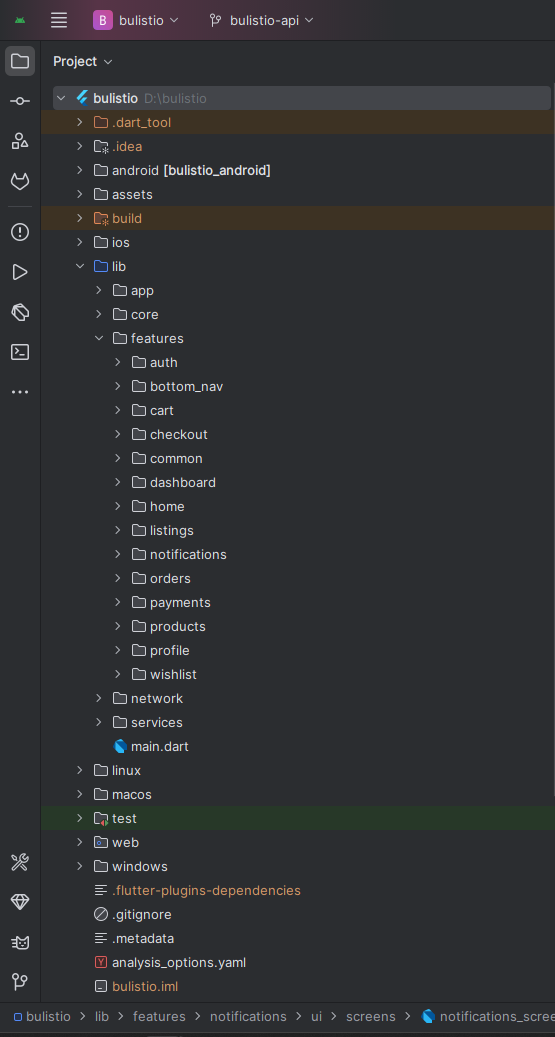
All you need to follow the lib(Library) Folder for any logical and UI changes in this project.
lib/
├── app/
├── core/
│   └── extensions/
├── features/
│   ├── auth/
│   │   ├── data/
│   │   │   └── models/
│   │   ├── providers/
│   │   └── ui/
│   │       ├── screens/
│   │       └── widgets/
│   ├── bottom_nav/
│   │   ├── providers/
│   │   └── ui/
│   │       ├── screens/
│   │       └── widgets/
│   ├── cart/
│   │   ├── data/
│   │   │   └── models/
│   │   ├── providers/
│   │   └── ui/
│   │       ├── screen/
│   │       └── widgets/
│   ├── checkout/
│   │   ├── data/
│   │   │   └── models/
│   │   ├── providers/
│   │   └── ui/
│   │       ├── screens/
│   │       └── widgets/
│   │           └── payment_handlers/
│   ├── common/
│   │   ├── data/
│   │   │   └── models/
│   │   ├── providers/
│   │   ├── services/
│   │   └── ui/
│   │       └── widgets/
│   ├── dashboard/
│   │   ├── data/
│   │   │   └── models/
│   │   ├── providers/
│   │   └── ui/
│   │       └── screens/
│   ├── home/
│   │   ├── data/
│   │   │   └── models/
│   │   ├── providers/
│   │   └── ui/
│   │       ├── screens/
│   │       └── widgets/
│   ├── listings/
│   │   ├── data/
│   │   │   └── models/
│   │   ├── providers/
│   │   └── ui/
│   │       ├── screens/
│   │       └── widgets/
│   ├── notifications/
│   │   ├── data/
│   │   │   └── models/
│   │   ├── providers/
│   │   └── ui/
│   │       ├── screens/
│   │       └── widgets/
│   ├── orders/
│   │   ├── data/
│   │   │   └── models/
│   │   ├── providers/
│   │   └── ui/
│   │       └── screens/
│   ├── payments/
│   │   ├── data/
│   │   │   └── models/
│   │   ├── providers/
│   │   └── ui/
│   │       └── widgets/
│   ├── products/
│   │   ├── data/
│   │   │   └── models/
│   │   ├── providers/
│   │   └── ui/
│   │       ├── screens/
│   │       └── widgets/
│   ├── profile/
│   │   ├── data/
│   │   │   └── models/
│   │   ├── providers/
│   │   └── ui/
│   │       └── screens/
│   └── wishlist/
│       ├── data/
│       │   └── models/
│       ├── providers/
│       └── ui/
│           ├── screens/
│           └── widgets/
├── network/
│   └── payment_services/
└── services/
Screens
App Screens:
Auth Screens (auth/ui/screens):
• Splash Screen
• Login Screen
• Register Screen
• OTP Screen
• Forget Password
• Reset Password
• Change Password
Bottom Navigation (bottom_nav/ui/screens):
• Bottom Nav
Home (home/ui/screens):
• Home Screen
Listings (listings/ui/screens):
• Listings Screen
• Listings Details Screen
Products (products/ui/screens):
• All Products Screen
• Products Details Screen
Cart (cart/ui/screen):
• Cart Screen
Checkout (checkout/ui/screens):
• Checkout Screen
• Checkout Success Screen
Orders (orders/ui/screens):
• Orders Screen
• Order Details Screen
Wishlist (wishlist/ui/screens):
• Wishlist Screen
Profile (profile/ui/screens):
• Profile Screen
• Edit Profile
Dashboard (dashboard/ui/screens):
• Dashboard Screen
Notifications (notifications/ui/screens):
• Notifications Screen
Requirements
Download and install Any one from these IDE(Android studio, Vs Code) on your computer.
- Source Android Studio: https://developer.android.com/studio
- Source Android Studio: https://code.visualstudio.com/download
Setup Flutter and Dart SDK in your computer if you want to modify the source code
- Source Android Studio: https://docs.flutter.dev/get-started/install
Must installed Flutter and dart plugin on your IDE
Install Flutter on Windows
Install Flutter on Mac
Installation
After downloading file from CodeCanyon you will get a zip file. Extracting the zip file you will get Documentation Folder and ... installable.zip included in there:
- Unzip the source code and open it in your IDE.
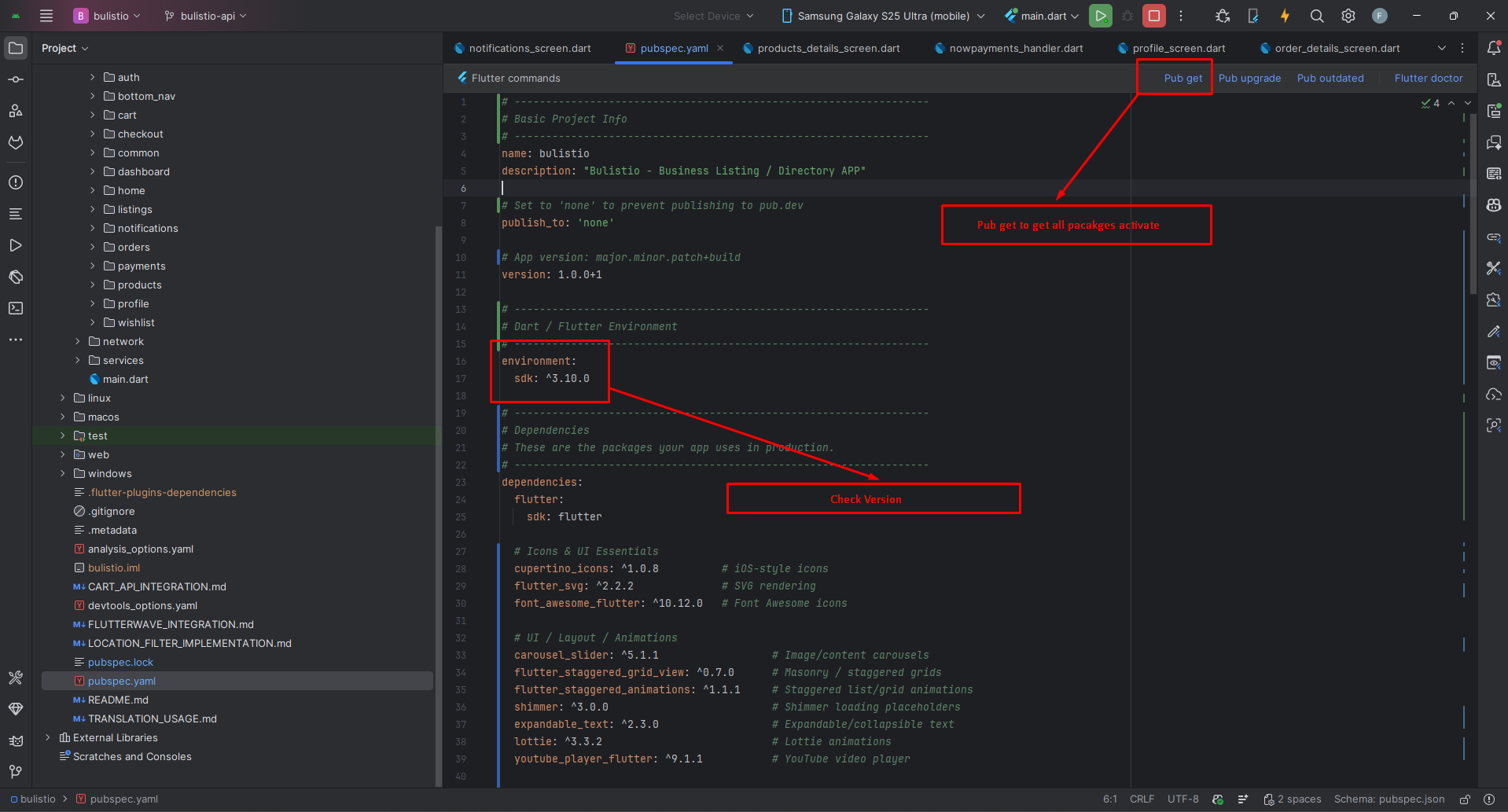
- On your IDE find for pubspecs.yaml file then click on pub get on top right side your IDE.
- Please make sure you are using Flutter version minimum 3.30.0
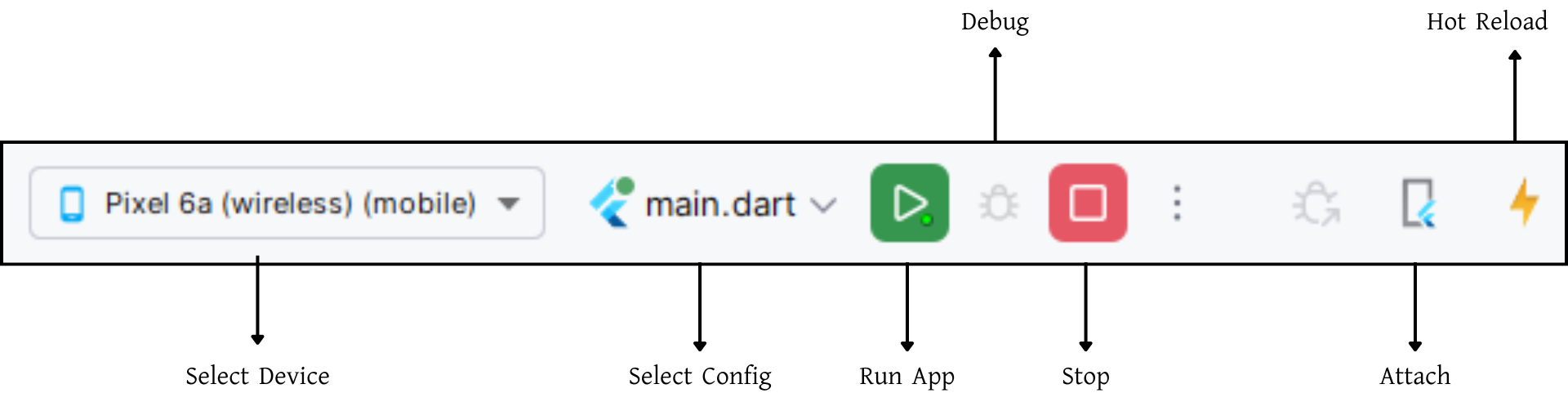
- Open an emulator or connect a real device and then click on Run Button for compile the project.
Flutter Packages
Icons & UI Essentials
cupertino_icons: ^1.0.8 >> iOS-style icons
flutter_svg: ^2.2.2 >> SVG rendering
font_awesome_flutter: ^10.12.0 >> Font Awesome icons
UI / Layout / Animations
carousel_slider: ^5.1.1 >> Image/content carousels
flutter_staggered_grid_view: ^0.7.0 >> Masonry / staggered grids
flutter_staggered_animations: ^1.1.1 >> Staggered list/grid animations
shimmer: ^3.0.0 >> Shimmer loading placeholders
expandable_text: ^2.3.0 >> Expandable/collapsible text
lottie: ^3.3.2 >> Lottie animations
youtube_player_flutter: ^9.1.1 >> YouTube video player
Forms / Inputs / Sharing
pinput: ^5.0.2 >> PIN/OTP input fields
share_plus: ^10.1.3 >> Share text/links/files
Networking & Data
dio: ^5.9.0 >> HTTP client
logger: ^2.6.2 >> Logging utility
State Management
provider: ^6.1.5+1 >> State management
Local Storage & Utilities
shared_preferences: ^2.5.3 >> Simple key-value storage
path_provider: ^2.1.5 >> Access to commonly used file system locations
intl: ^0.20.2 >> Internationalization & formatting
Media & File Handling
file_picker: ^10.3.7 >> File chooser
image_picker: ^1.2.1 >> Pick images from gallery/camera
image_cropper: 11.0.0 >> Crop picked images
cached_network_image: ^3.4.1 >> Cached network images
HTML & WebView
flutter_html: ^3.0.0 >> Render HTML
flutter_inappwebview: ^6.1.5 >> In-app WebView
Maps & Location
flutter_map: ^8.2.2 >> OpenStreetMap-based map widget
latlong2: ^0.9.1 >> Lat/Lng helpers
geolocator: ^14.0.2 >> Get current device location
geocoding: ^3.0.0 >> Convert between coordinates and addresses
google_places_flutter: ^2.0.9 >> Google Places search autocomplete
Links & URL Launching
url_launcher: ^6.3.2 >> Open URLs, dialer, mail, etc.
Payments / Gateways
flutter_stripe: ^12.1.1 >> Stripe payments
razorpay_flutter: ^1.4.0 >> Razorpay payments
flutter_paytabs_bridge: ^2.7.3 >> PayTabs integration
Notifications & Push
firebase_core: ^4.2.1 >> Required core for Firebase
firebase_messaging: ^16.0.4 >> FCM push notifications
flutter_local_notifications: ^19.5.0 >> Local notifications
onesignal_flutter: ^5.1.2 >> OneSignal push notifications
Mobile App Setting
Configure your mobile app settings through the admin panel. This section covers all essential configurations including home page content, general settings, payment gateways, and plugin integrations.
Home Page
Customize the content and appearance of your mobile app's home page. Update images, titles, and section headings to match your brand.
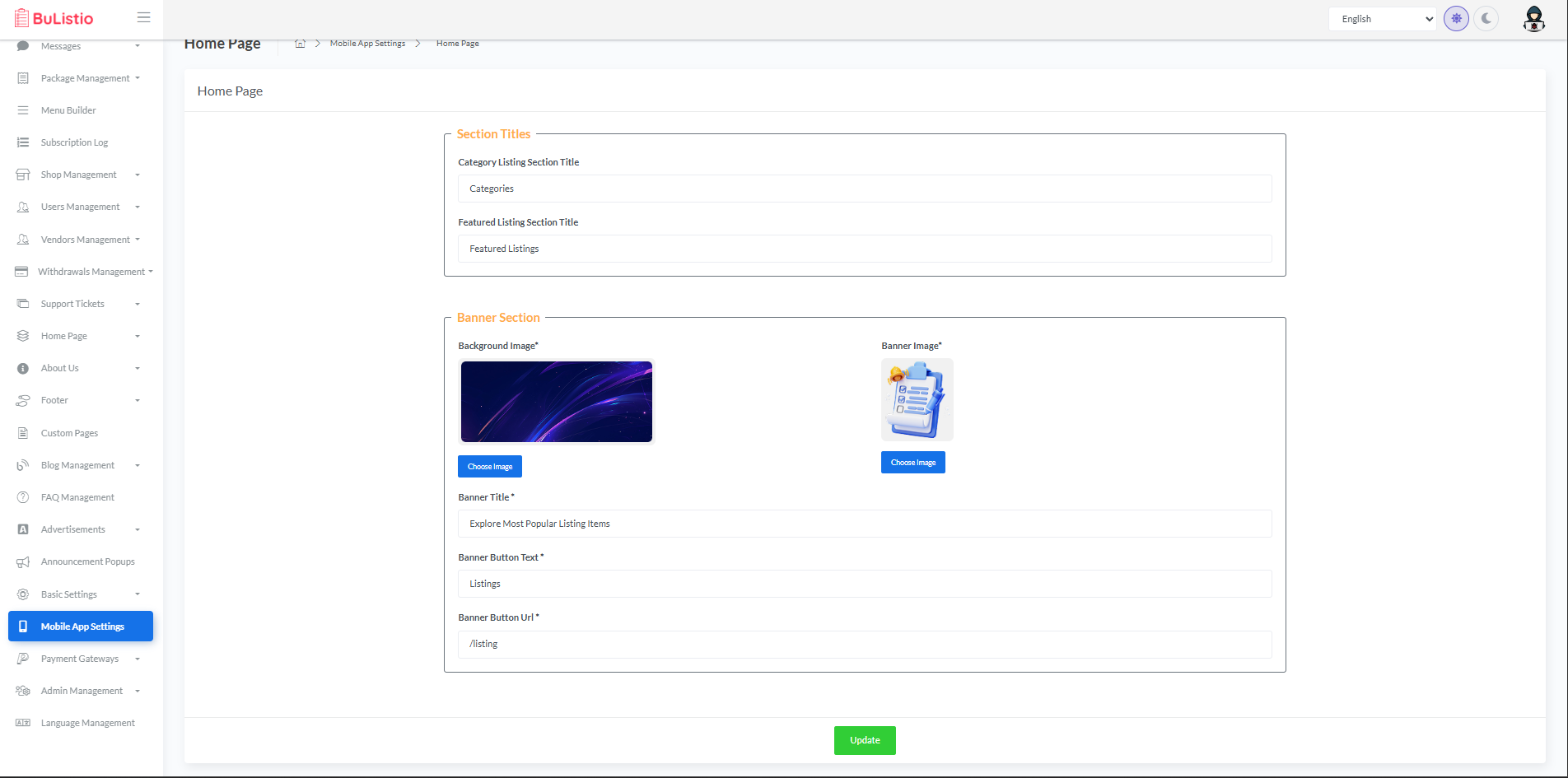
Hero Section
| Hero Section Image | Upload your hero banner image (recommended size: 1200x600px) |
| Hero Section Title | 24/7 Services Available (Example) |
| Hero Section Subtitle | All Your Services in (Example) |
| Hero Section Text | BookApp Platform (Example) |
Category Section
| Category Section Title | Featured Categories (Example) |
Featured Service Section
| Featured Service Section Title | Featured Services (Example) |
Vendor Section
| Vendor Section Title | Top Vendors (Example) |
Latest Service Section
| Latest Service Section Title | Latest Service (Example) |
General Settings
Configure core application settings including API base URL, favicon, and logo.
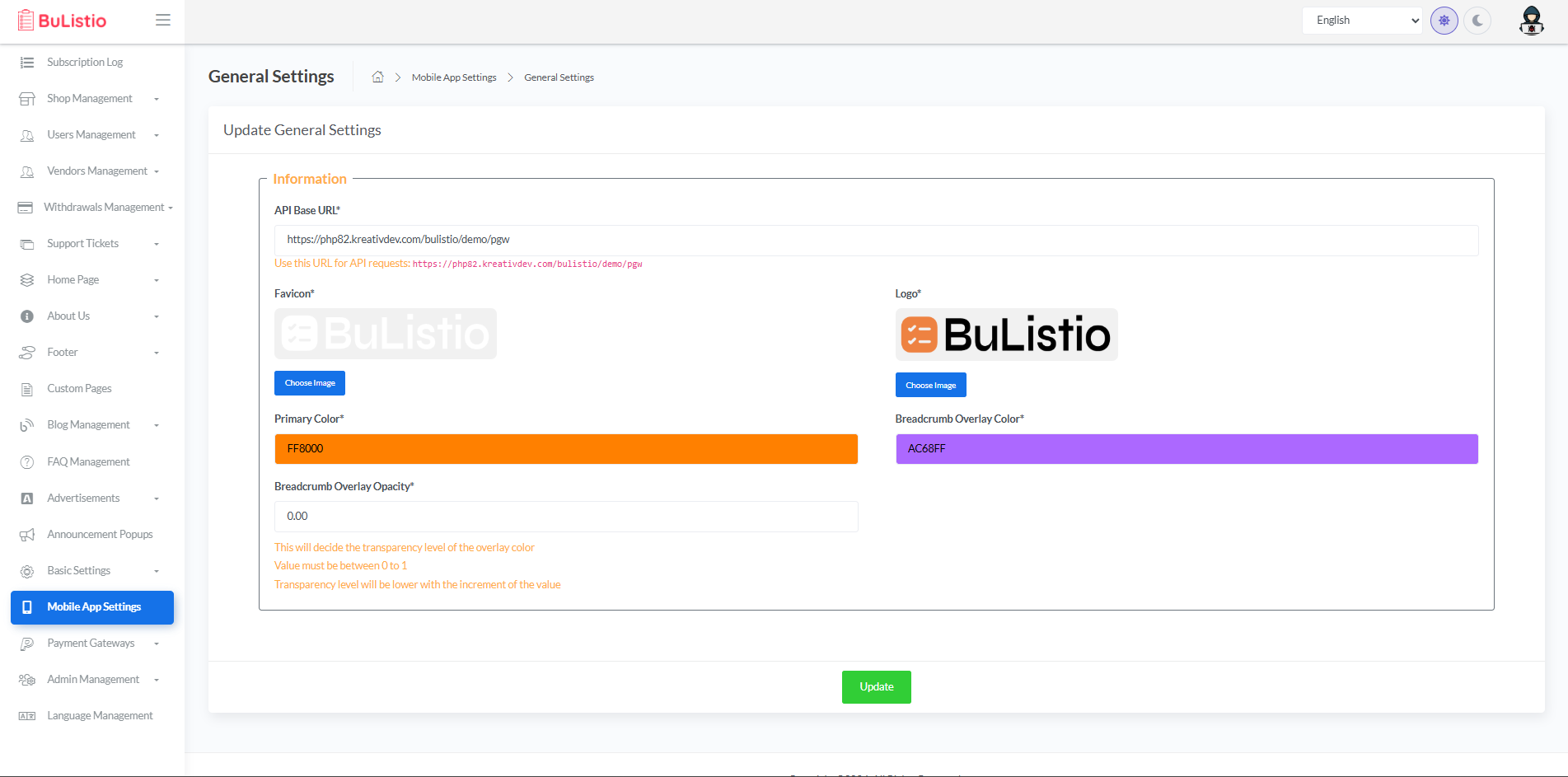
Information
| API Base URL * |
https://php82.kreativdev.com/bulistio/demo/pgw (Example)Use this URL for API requests in your mobile application |
| Favicon * | Upload your favicon image (recommended: 32x32px or 64x64px) |
| Logo * | Upload your application logo (recommended: transparent PNG, 512x512px) |
Payment Gateways
Configure multiple payment gateway integrations to accept payments in your app. Each gateway can be enabled/disabled independently and configured with test or live credentials.
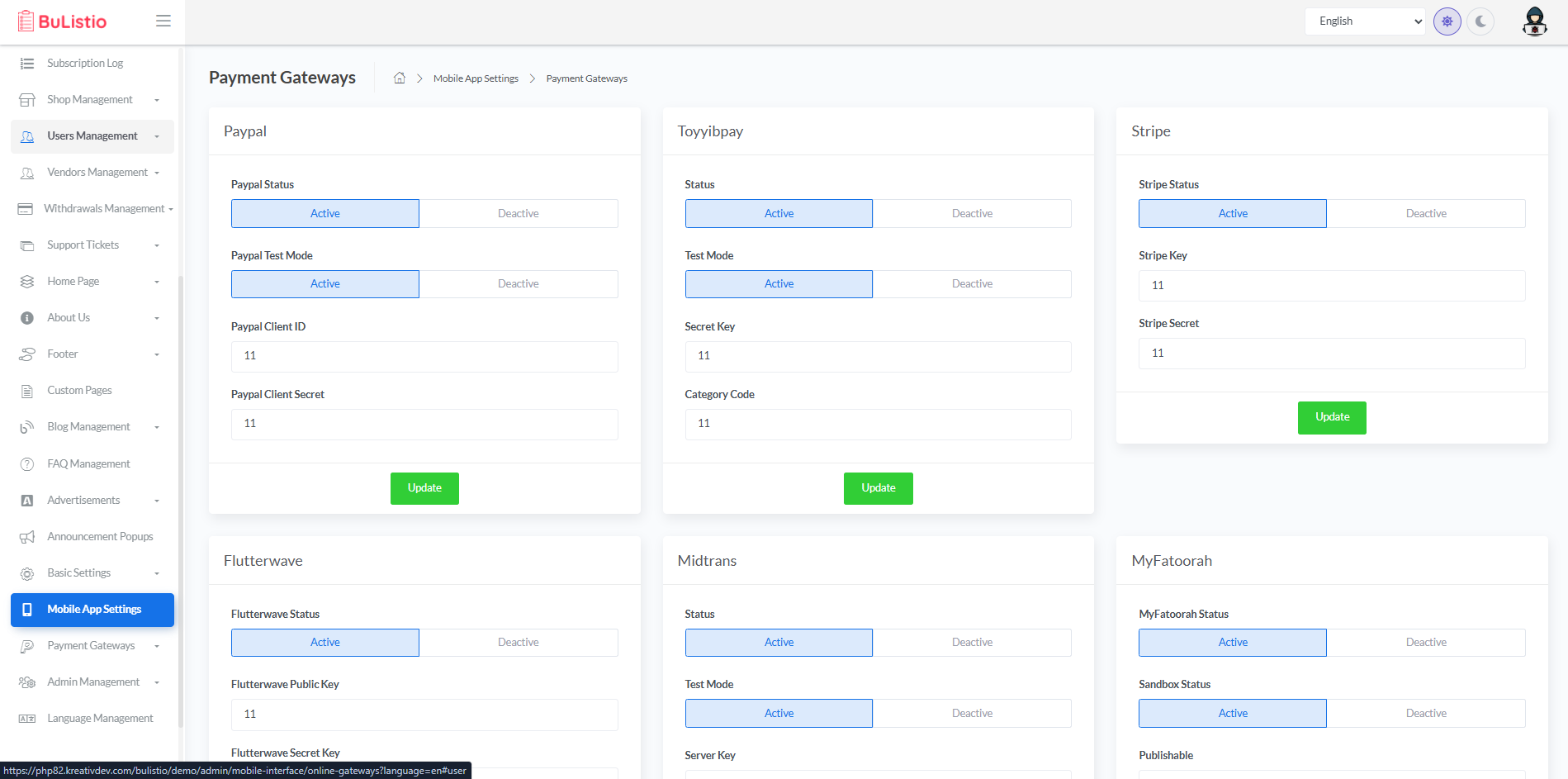
💡 How to Configure Payment Gateways:
- Navigate to Mobile App Setting → Payment Gateways in your admin panel
- Select the payment gateway you want to configure
- Toggle the Status switch to enable/disable the gateway
- Enable Test Mode/Sandbox for testing before going live
- Enter your API credentials (obtain these from your payment gateway dashboard)
- Click Save to apply the changes
Note: You can enable multiple payment gateways. Users will be able to choose their preferred payment method during checkout.
1. PayPal
Accept payments via PayPal - one of the most widely used payment platforms worldwide.
| PayPal Status | Toggle ON to enable PayPal payments in your app |
| PayPal Test Mode | Enable to use PayPal sandbox for testing (recommended during development) |
| PayPal Client ID | Enter your PayPal application Client ID from PayPal Developer Dashboard |
| PayPal Client Secret | Enter your PayPal application Client Secret |
2. Toyyibpay
Malaysian payment gateway for local payment methods.
| Status | Toggle ON to enable Toyyibpay |
| Test Mode | Enable for sandbox testing |
| Secret Key | Enter your Toyyibpay secret key from your Toyyibpay account |
| Category Code | Enter your Toyyibpay category code |
3. Stripe
Popular global payment processor supporting credit/debit cards and various payment methods.
| Stripe Status | Toggle ON to enable Stripe payments |
| Stripe Key | Enter your Stripe Publishable Key from Stripe Dashboard |
| Stripe Secret | Enter your Stripe Secret Key (keep this confidential) |
4. Flutterwave
African payment gateway supporting multiple currencies and payment methods.
| Flutterwave Status | Toggle ON to enable Flutterwave payments |
| Flutterwave Public Key | Enter your Flutterwave Public Key from your dashboard |
| Flutterwave Secret Key | Enter your Flutterwave Secret Key |
5. Midtrans
Indonesian payment gateway with support for local payment methods.
| Status | Toggle ON to enable Midtrans payments |
| Test Mode | Enable for sandbox testing |
| Server Key | Enter your Midtrans Server Key from dashboard |
| ⚠️ Important: Configure webhook URLs in your Midtrans Dashboard settings to receive payment notifications. | |
6. My-Fatoorah
Middle Eastern payment gateway supporting Kuwait, Saudi Arabia, and other MENA countries.
| MyFatoorah Status | Toggle ON to enable MyFatoorah payments |
| Sandbox Status | Enable for testing before going live |
| Token | Enter your MyFatoorah API Token |
7. Authorize.Net
US-based payment gateway for processing credit card transactions.
| Authorize.Net Status | Toggle ON to enable Authorize.Net payments |
| Test Mode | Enable for sandbox testing |
| API Login ID | Enter your Authorize.Net API Login ID |
| Transaction Key | Enter your Transaction Key |
| Public Client Key | Enter your Public Client Key |
8. PhonePe
Indian digital payment platform with UPI, cards, and wallet support.
| Status | Toggle ON to enable PhonePe payments |
| Sandbox Status | Enable for testing in sandbox environment |
| Client Id | Enter your PhonePe Client ID |
| Client Secret Key | Enter your PhonePe Client Secret Key |
| Salt Index | Enter your PhonePe Salt Index for transaction security |
9. Monnify
Nigerian payment platform for bank transfers and card payments.
| Status | Toggle ON to enable Monnify payments |
| Sandbox Status | Enable for testing |
| Api Key | Enter your Monnify API Key |
| Secret Key | Enter your Monnify Secret Key |
| Wallet Account Number | Enter your Monnify Wallet/Contract Account Number |
10. Paystack
Nigerian payment gateway popular across Africa for online payments.
| Paystack Status | Toggle ON to enable Paystack payments |
| Paystack Secret Key | Enter your Paystack Secret Key from your dashboard |
11. NowPayments
Cryptocurrency payment gateway accepting Bitcoin, Ethereum, and other cryptocurrencies.
| Status | Toggle ON to enable cryptocurrency payments via NowPayments |
| Api Key | Enter your NowPayments API Key |
12. Mollie
European payment service provider supporting various payment methods including iDEAL and SEPA.
| Status | Toggle ON to enable Mollie payments |
| API Key | Enter your Mollie API Key from your dashboard |
13. Xendit
Southeast Asian payment gateway supporting Indonesia, Philippines, and more.
| Status | Toggle ON to enable Xendit payments |
| Secret Key | Enter your Xendit Secret Key |
14. MercadoPago
Latin American payment platform widely used in Argentina, Brazil, Mexico, and more.
| MercadoPago Status | Toggle ON to enable MercadoPago payments |
| Test Mode | Enable for testing before going live |
| MercadoPago Token | Enter your MercadoPago Access Token |
15. Razorpay
Indian payment gateway supporting UPI, cards, net banking, and wallets.
| Razorpay Status | Toggle ON to enable Razorpay payments |
| Razorpay Key | Enter your Razorpay Key ID from Razorpay Dashboard |
| Razorpay Secret | Enter your Razorpay Secret Key |
Plugins
Configure third-party integrations and plugins for enhanced functionality.
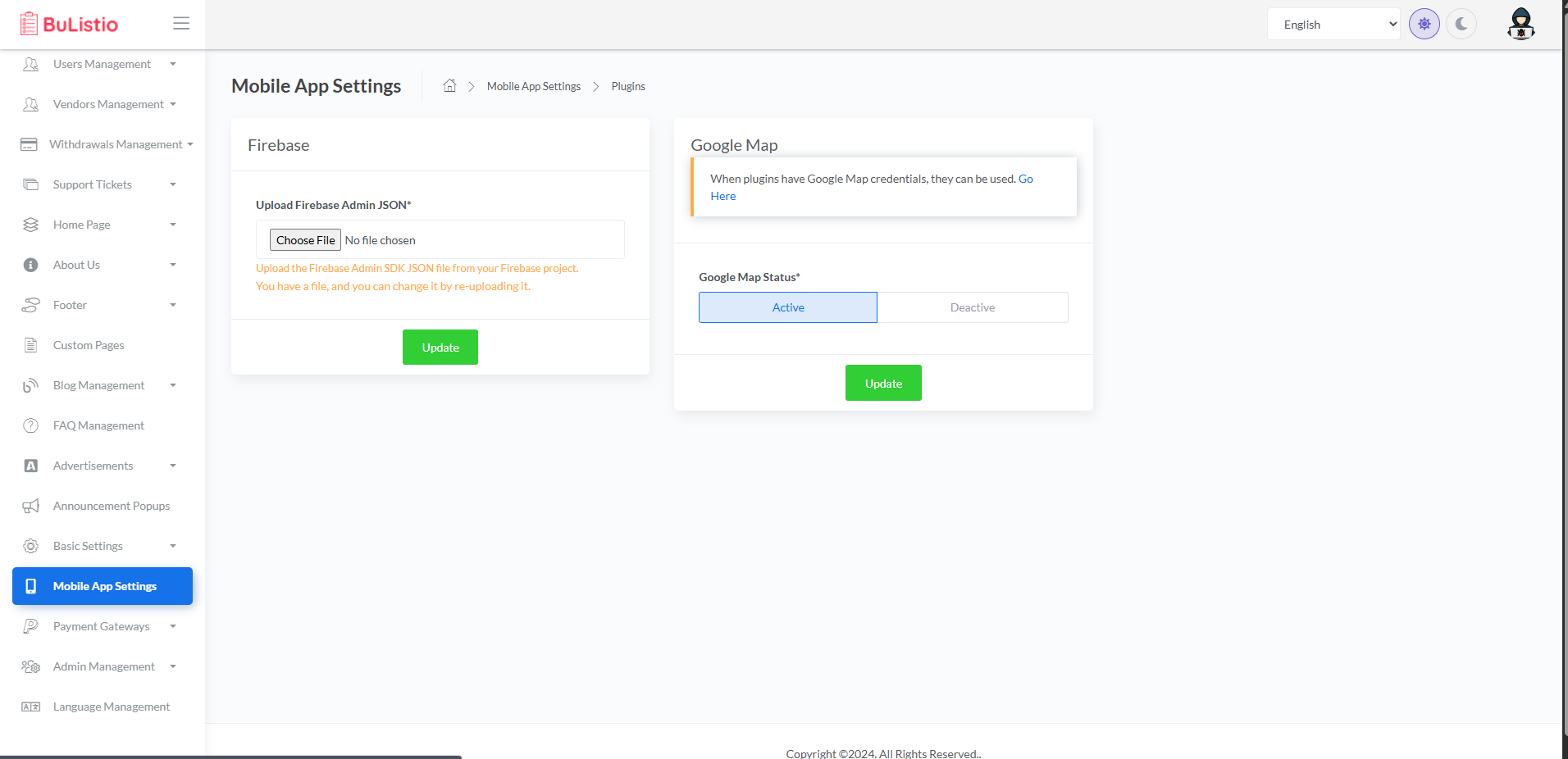
Firebase Configuration
| Upload Firebase Admin JSON * |
Upload the Firebase Admin SDK JSON file from your Firebase project.
Note: You can change the file by re-uploading it if needed. |
How to get Firebase Admin SDK JSON:
- Go to your Firebase Console
- Select your project
- Click on Project Settings (gear icon)
- Navigate to Service Accounts tab
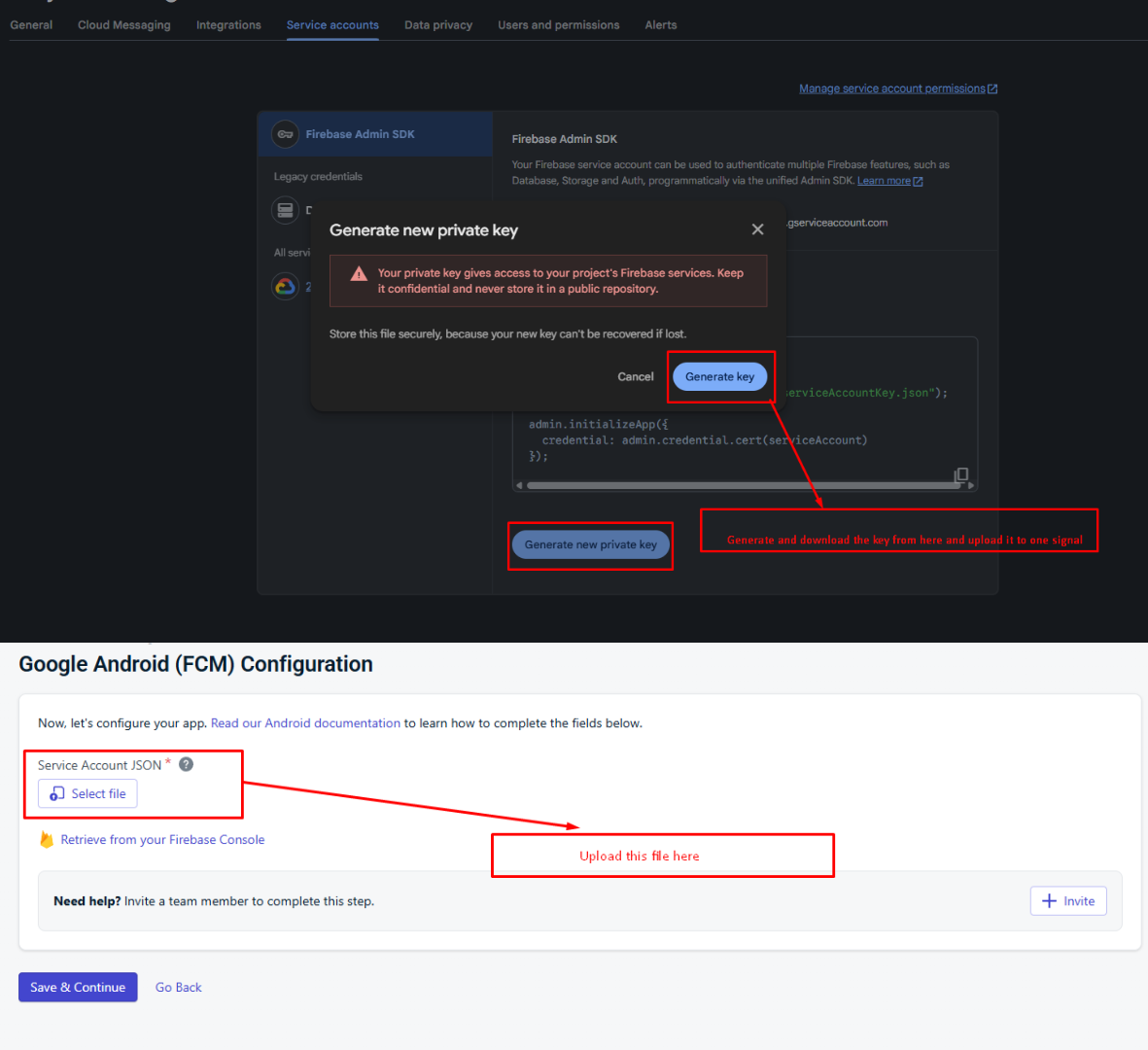
- Click "Generate New Private Key"
- Download and upload the JSON file here
API Setup
This mobile application connects to your backend server via API. You only need to change the API URL to connect the app with your server.
Step 1: Open API Configuration File
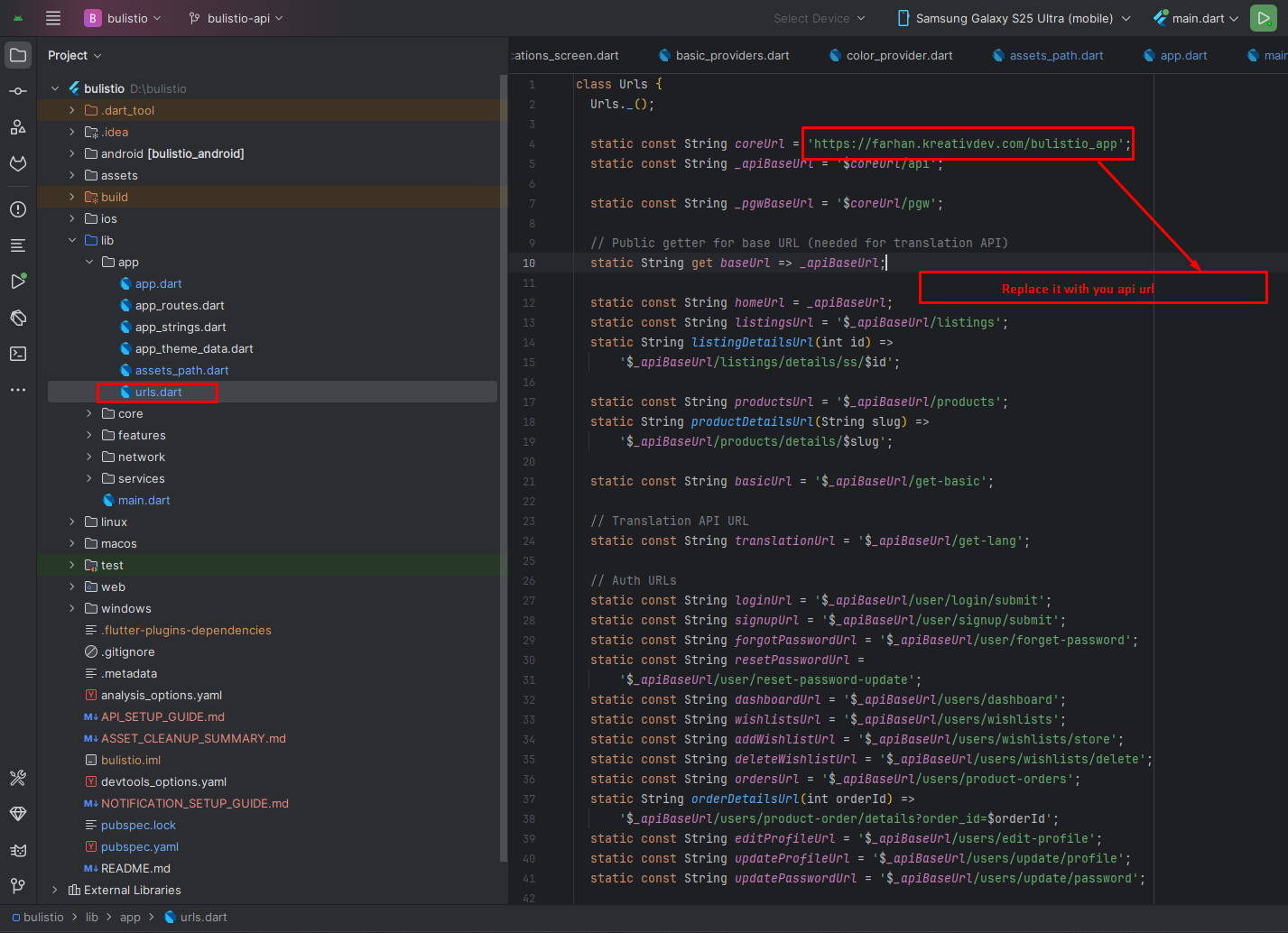
Navigate to: lib/app/urls.dart
Step 2: Change API Base URL
Find this line in the file (around line 4):
Replace it with your own server URL:
Example URLs:
static const String coreUrl = 'https://mybulistio.com';
// Example 2: Subdomain
static const String coreUrl = 'https://api.mybulistio.com';
// Example 3: Domain with folder
static const String coreUrl = 'https://example.com/bulistio';
Step 3: Save and Test
- Save the
urls.dartfile after making changes - Run
flutter cleanin terminal - Run
flutter pub getin terminal - Run the app and verify the connection
Important Notes
- The app automatically generates all API endpoints from the base URL
- Make sure your server is running and accessible
- Use HTTPS (not HTTP) for production apps
- Ensure your backend API is properly configured and running
Setup Application
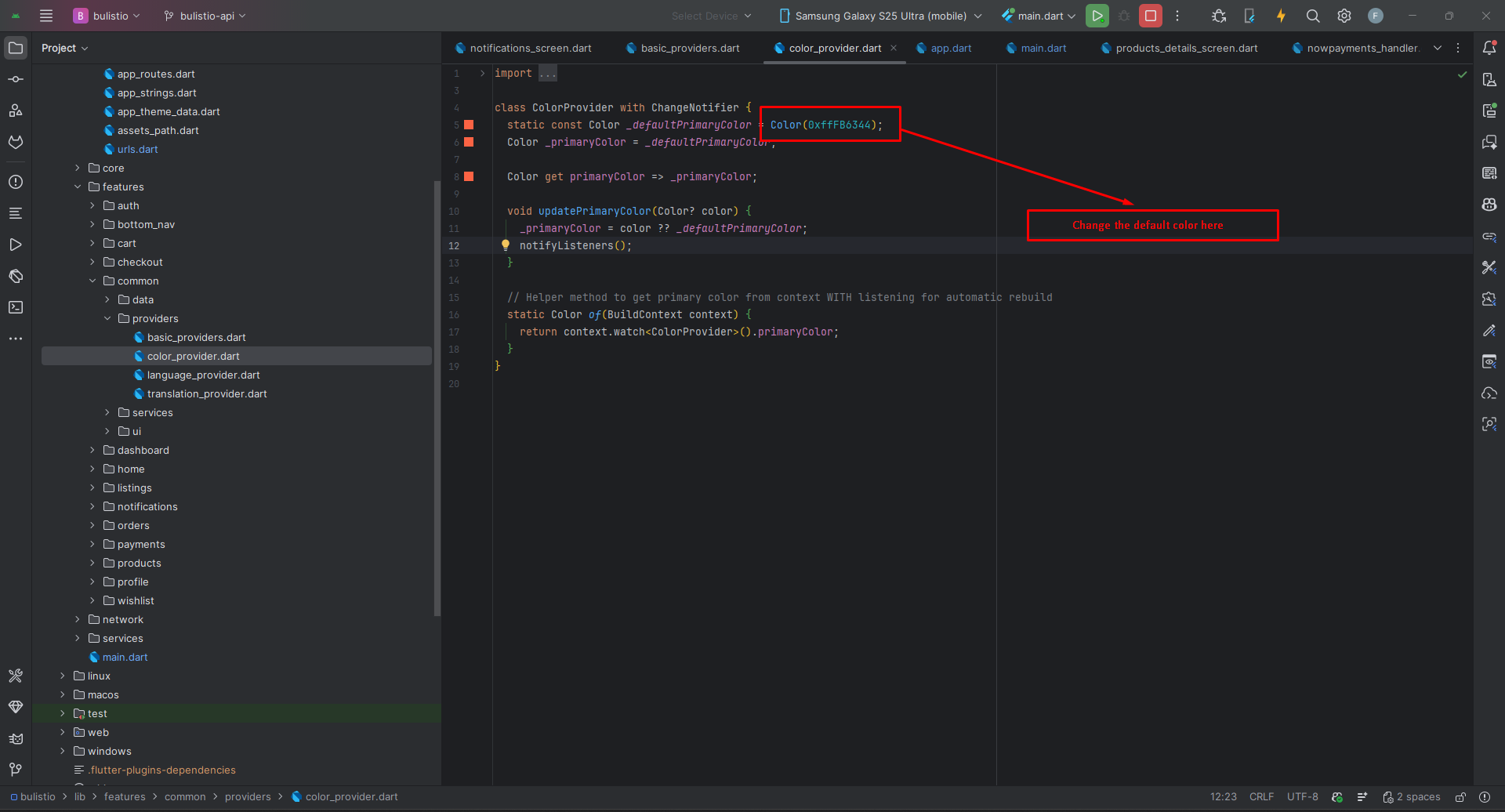
Change App Primary Color
Open lib/features/common/providers/color_provider.dart
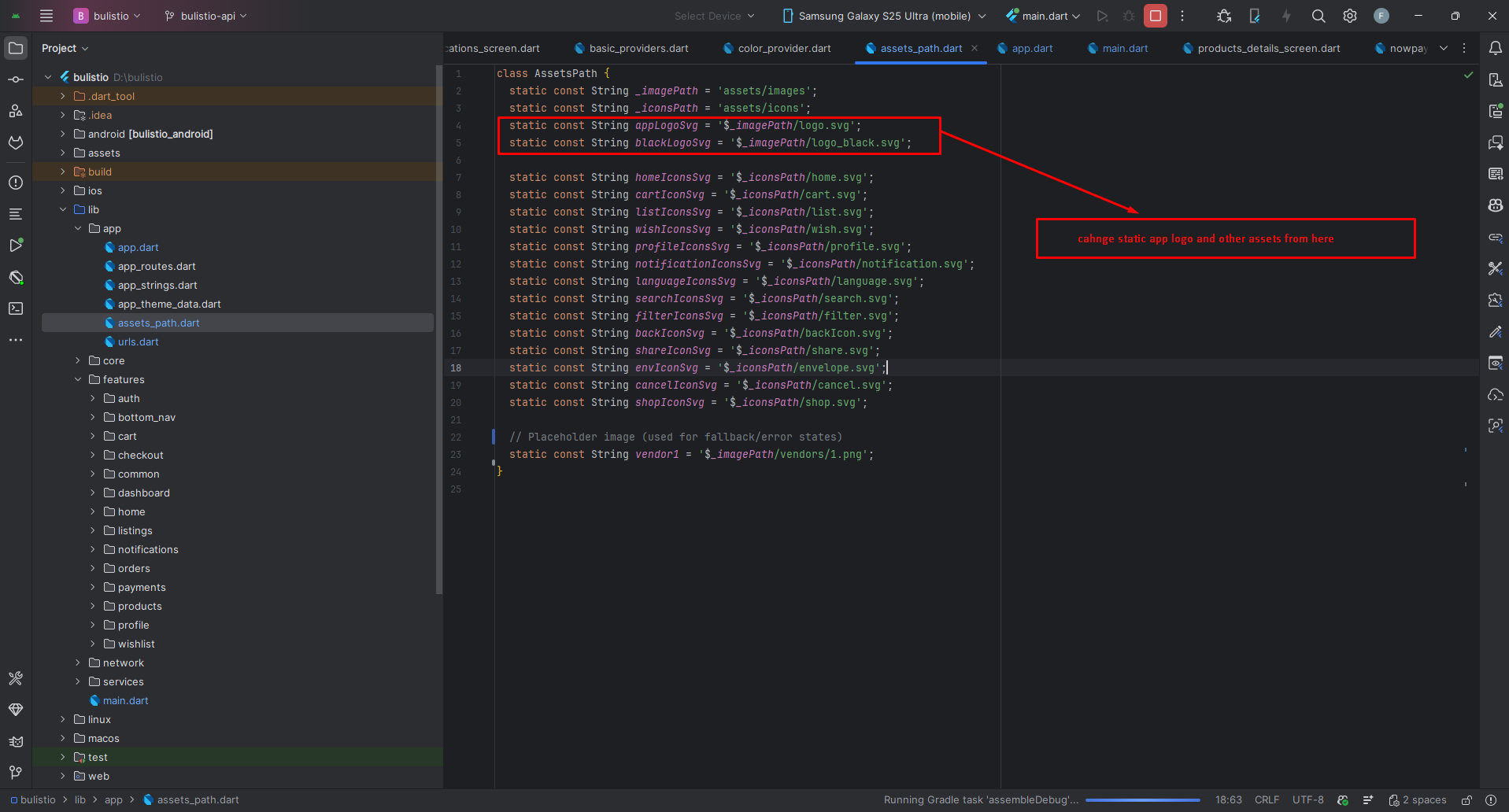
Change App Logo
Open lib/app/assets_path.dart
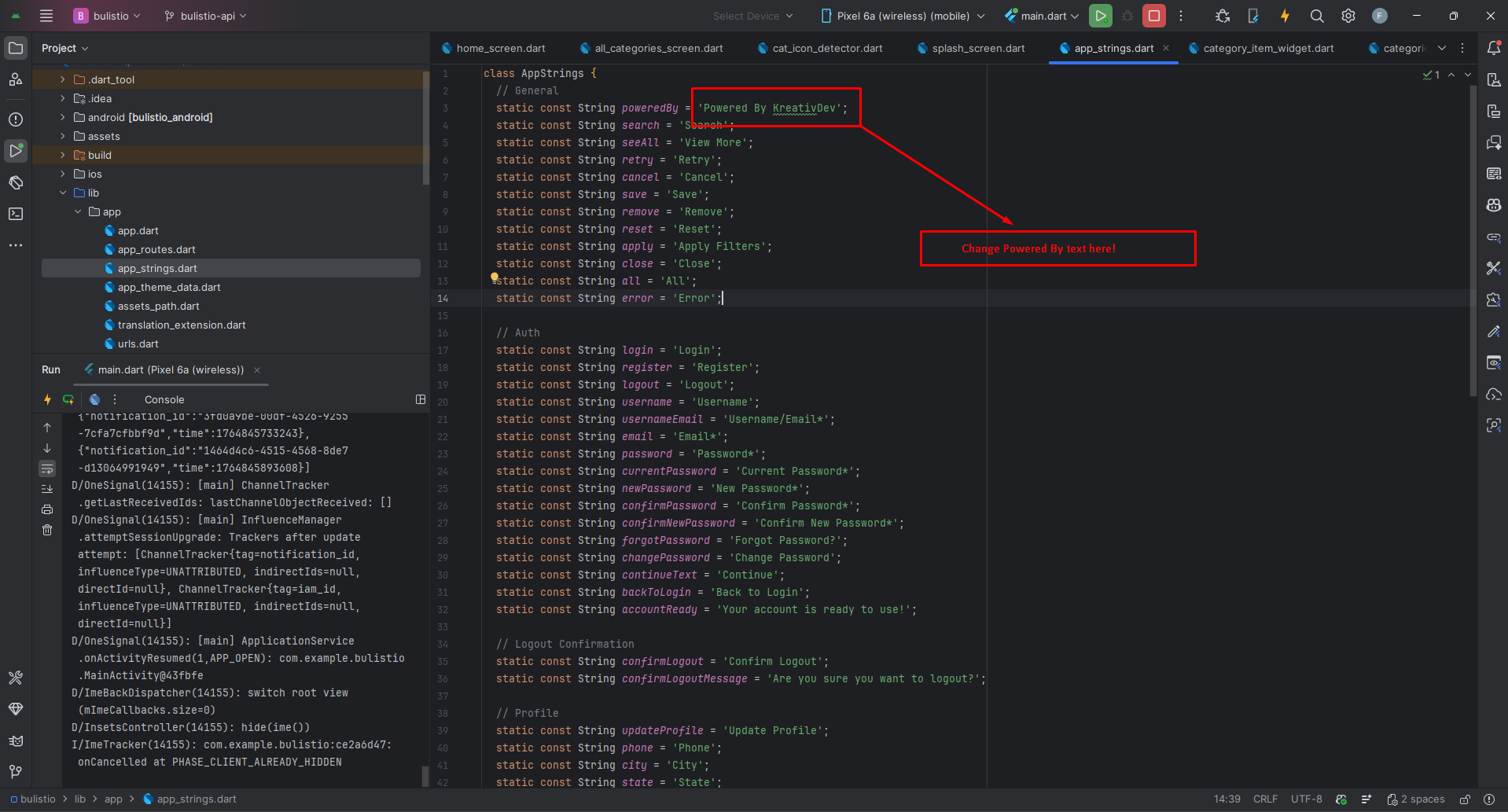
Change Splash Details
Change Powered By text here
Change Launcher Icons
The app uses flutter_launcher_icons: ^0.14.4 package (already installed) to generate launcher icons for Android and iOS.
Step 1: Prepare Your Icon
- Create your app icon image (recommended size: 1024x1024 pixels)
- Save it as a PNG file with transparency support
- Navigate to
assets/images/folder in your project
Step 2: Replace Icon Files
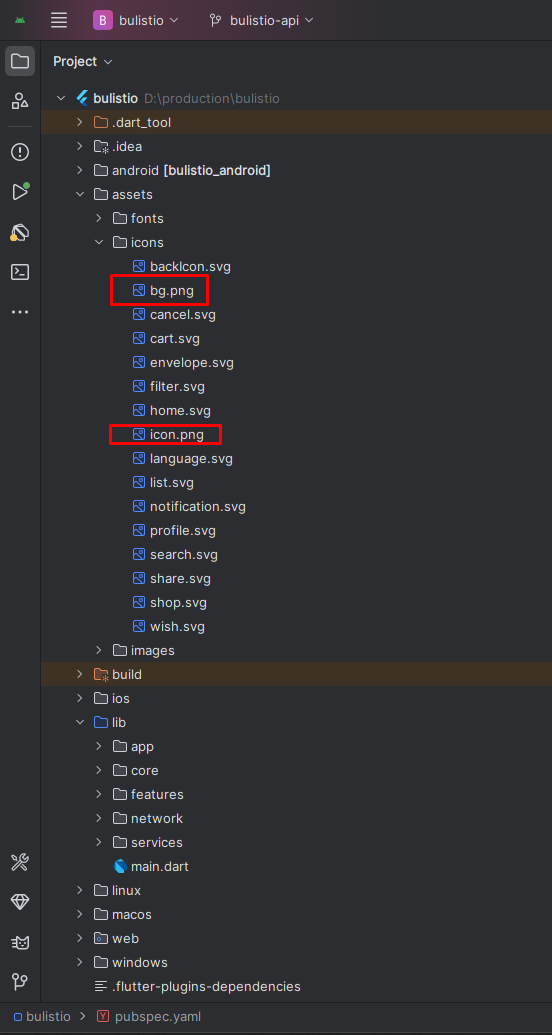
- Replace the existing icon files with your own icons (keep the same file names):
assets/icons/icon.png- Main launcher icon (1024x1024 px recommended)assets/icons/bg.png- Android adaptive icon background
Step 3: Generate Launcher Icons
Run the following command in your terminal to generate launcher icons:
This command will automatically generate all required icon sizes for both Android and iOS platforms.
Step 4: Verify Changes
- Check
android/app/src/main/res/- Android icons generated - Check
ios/Runner/Assets.xcassets/AppIcon.appiconset/- iOS icons generated - Run the app to see your new launcher icon
Additional Resources
- Rename App: https://pub.dev/packages/rename_app
- Flutter Launcher Icons: https://pub.dev/packages/flutter_launcher_icons
- Change Package Name: https://pub.dev/packages/change_app_package_name
Firebase Settings
This app uses Firebase Cloud Messaging (FCM) and OneSignal for push notifications. Follow these steps to configure your own Firebase project and OneSignal account.
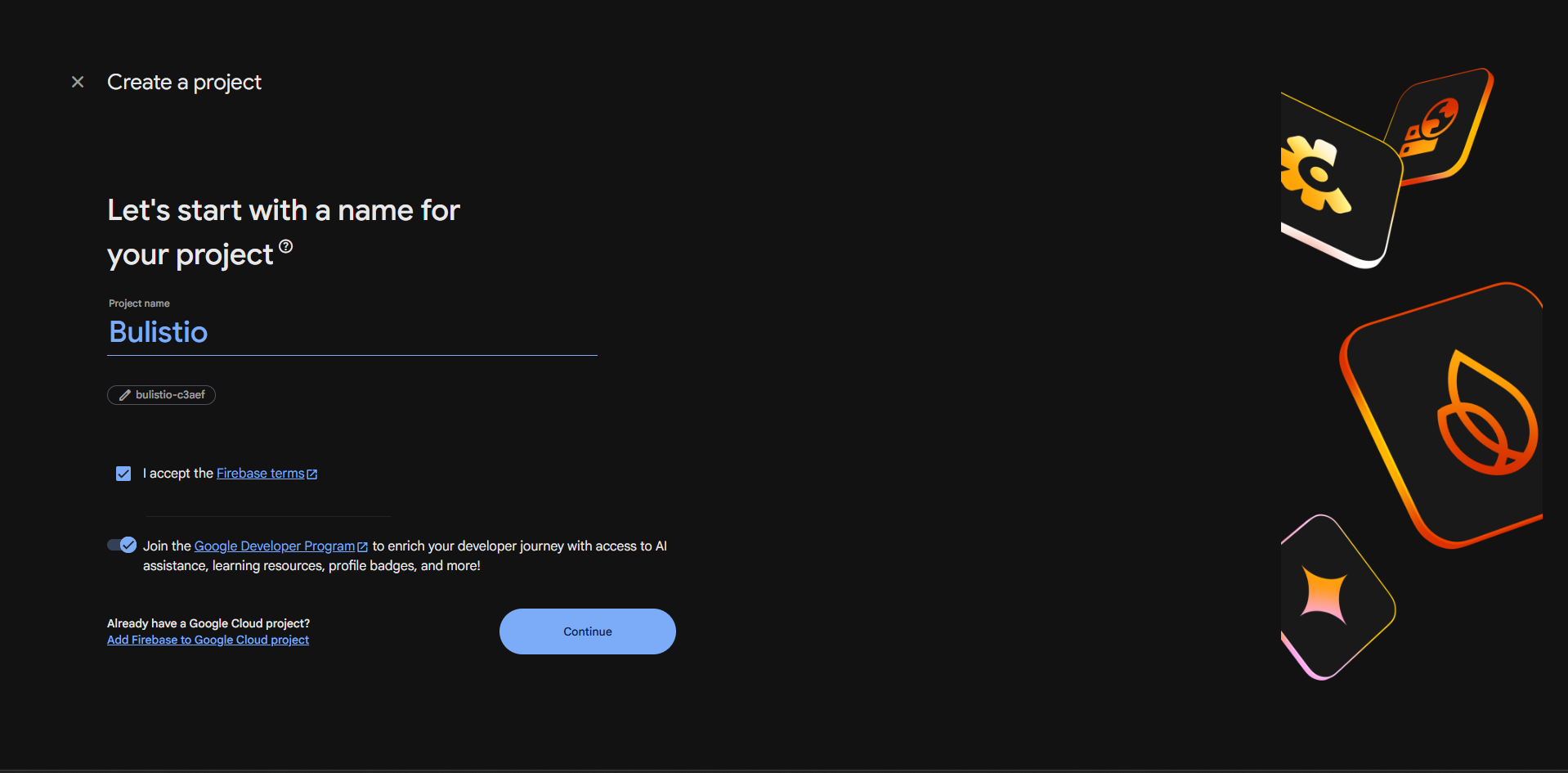
Step 1: Create Firebase Project
- Go to Firebase Console
- Click "Add Project" or select an existing project
- Enter your project name (e.g., "Bulistio App")
- Enable Google Analytics (optional but recommended)
- Click "Create Project" and wait for setup to complete
Step 2: Add Android App to Firebase
- In Firebase Console, click the Android icon to add an Android app
- Enter your Android package name:
com.example.bulistio(or your custom package name) - Enter app nickname (optional): Bulistio Android
- Click "Register app"
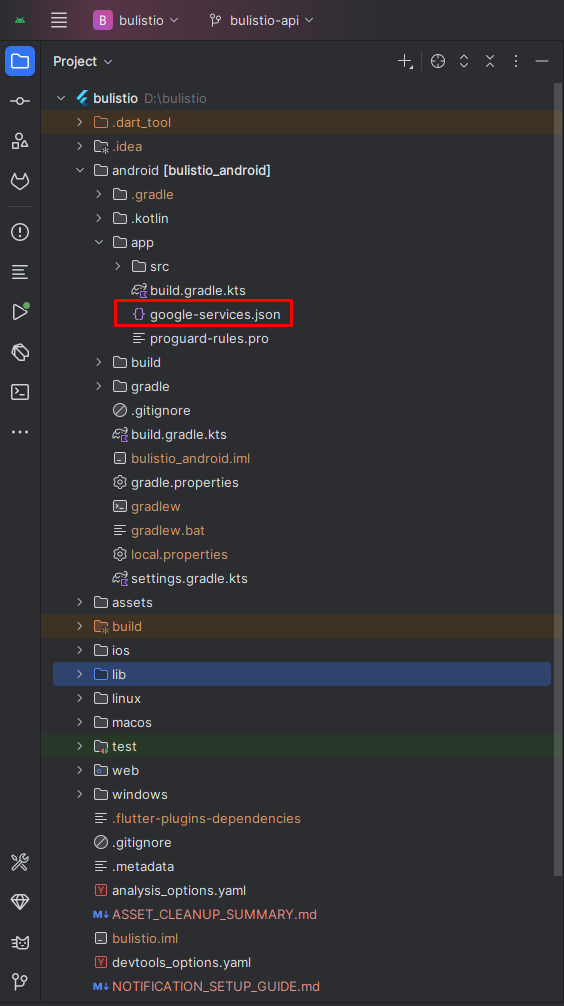
- Download
google-services.jsonfile - Replace the file at
android/app/google-services.jsonin your project
Step 3: Add iOS App to Firebase (Optional)
- In Firebase Console, click the iOS icon to add an iOS app
- Enter your iOS bundle ID:
com.example.bulistio(or your custom bundle ID) - Enter app nickname (optional): Bulistio iOS
- Click "Register app"
- Download
GoogleService-Info.plistfile - Place the file in
ios/Runner/directory - Open project in Xcode and add the file to Runner target
Step 4: Enable Cloud Messaging API
- In Firebase Console, go to Project Settings (⚙️ icon)
- Select "Cloud Messaging" tab
- Note your Server Key and Sender ID (needed for OneSignal)
- Click "Manage API in Google Cloud Console"
- Ensure "Firebase Cloud Messaging API" is ENABLED
Step 5: Setup OneSignal Account
- Go to OneSignal and create a free account
- Click "New App/Website" in OneSignal dashboard
- Enter app name (e.g., "Bulistio") and select platforms (iOS, Android)
- Click "Create"
Step 6: Configure OneSignal for Android
- Select "Google Android (FCM)" configuration in OneSignal
- Enter Firebase Server Key (from Firebase Console → Cloud Messaging tab)
- Enter Firebase Sender ID (from Firebase Console → Cloud Messaging tab)
- Click "Save & Continue"
Step 7: Configure OneSignal for iOS (Optional)
- Select "Apple iOS (APNs)" configuration in OneSignal
- Upload APNs Auth Key (.p8 file) or Certificate (.p12 file) from Apple Developer
- Enter your Team ID and Key ID (for Auth Key option)
- Enter Bundle ID:
com.example.bulistio - Click "Save & Continue"
Step 8: Update OneSignal App ID in Code
- In OneSignal Dashboard, go to Settings → Keys & IDs
- Copy your "OneSignal App ID"
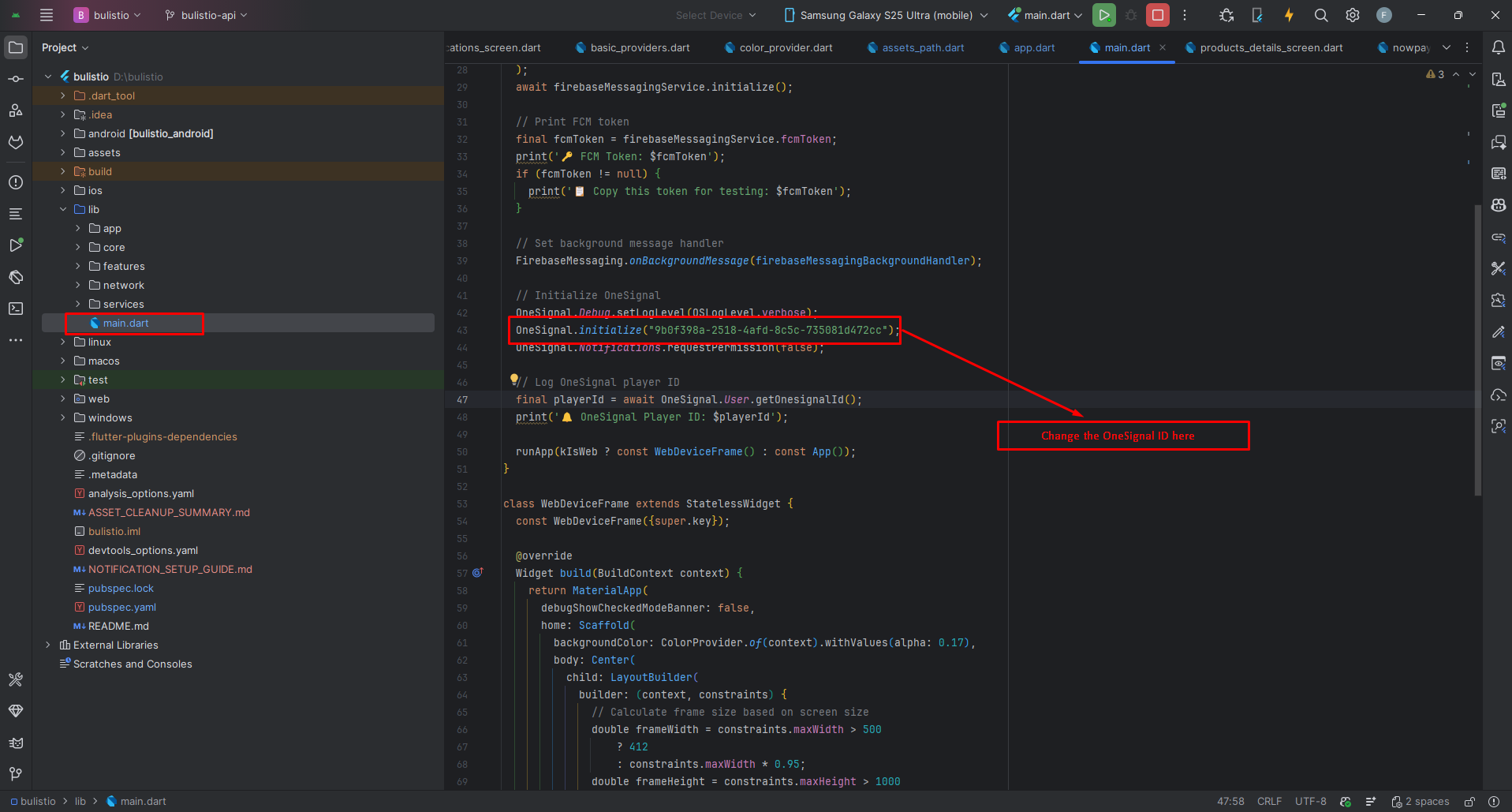
- Open
lib/main.dartfile (around line 43) - Replace the App ID in this line:
OneSignal.initialize("YOUR_ONESIGNAL_APP_ID_HERE"); - Save the file
Step 9: Test Notifications
- Run the app using
flutter run - Check terminal for FCM Token and OneSignal Player ID
- Test Firebase: Go to Firebase Console → Cloud Messaging → Send test message
- Test OneSignal: Go to OneSignal Dashboard → Messages → New Push → Send to Test Users
- Verify notifications appear on your device
Configuration Files Summary
| File | Location | Source |
|---|---|---|
google-services.json |
android/app/ |
Firebase Console |
GoogleService-Info.plist |
ios/Runner/ |
Firebase Console |
| OneSignal App ID | lib/main.dart (line 43) |
OneSignal Dashboard |
Troubleshooting
- FCM Token is null: Ensure google-services.json is in correct location and Firebase Cloud Messaging API is enabled
- OneSignal Player ID not showing: Verify OneSignal App ID is correct in main.dart and app has internet connection
- Notifications not received: Check device notification settings and verify app notification permissions
- iOS notifications not working: Verify GoogleService-Info.plist is added to Xcode project and APNs certificate is valid in OneSignal
Build & Run App
Run the Application:
- In the target selector, select an Android device for running the app. If none are listed as available, select Tools> Android > AVD Manager and create one there. For details, see Managing AVDs.
- If you don't use Android Studio, Vs Code or IntelliJ you can use the command line to run your application using the following command:
Build Release & Publish App
1. Build Release Apk or other file type as your need.
After making all your changes and customizations, save the project. Then open the console, navigate to your project folder, and execute the following command:
⚡ For Play Store deployments, it’s recommended to use App Bundles or split APKs to reduce the final APK size.
Build and Install App:
• Generate App Bundle (recommended):
• Split APKs per ABI:
Signing the App (required for Google Play):
Before uploading, you must sign your app. Generate a signing key by running:
Create a key.properties file inside android/ folder with the following content:
keyPassword = password from previous step
keyAlias = key
storeFile = location of the keystore file (e.g. /Users/username/key.jks)
Then update android/app/build.gradle with:
def keystoreProperties = new Properties()
keystoreProperties.load(new FileInputStream(keystorePropertiesFile))
signingConfigs {
release {
keyAlias keystoreProperties['keyAlias']
keyPassword keystoreProperties['keyPassword']
storeFile file(keystoreProperties['storeFile'])
storePassword keystoreProperties['storePassword']
}
}
buildTypes {
release {
signingConfig signingConfigs.release
}
}
2. Android (Play Store)
Follow the official guidelines to publish your signed app or app bundle to the Google Play Store:
https://flutter.dev/docs/deployment/android3. iOS (App Store)
Follow the official guidelines to publish your app to the Apple App Store:
https://flutter.dev/docs/deployment/iosRun flutter build apk --release for Android.
Run flutter build ios --release for iOS.
Follow Flutter docs for publishing to Play Store / App Store.
Support
📩 For support, customization, or queries, contact us via email.