Affiliate for Tenant Subscription Plan
Coursemat Addon / Plugin
Introduction
- Item Name : Affiliates for Tenant Subscription Plan - Coursemat Addon / Plugin
- Item Version : v 1.0
- Author : KreativDev
- Support Forum : https://kreativdev.freshdesk.com/
This plugin/add-on allows you to integrate an affiliate system into your Coursemat platform. Affiliates can promote your platform and help you acquire more tenants. In return, you can offer them a commission, with rates set and managed by you.
Requirements
Please follow the Instructions below:
- This is not a standalone script. You must have Coursemat installed before installing this plugin in Coursemat.
- This plugin requires Coursemat version 3.2 or higher.
- Ensure that the zip and fileinfo PHP extensions are enabled on your server. View screenshot
Plugin Installation Process in Coursemat
- After purchasing the plugin/add-on, download it from CodeCanyon.
-
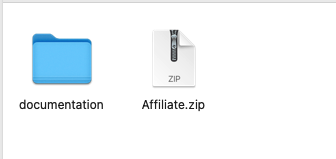
Unzip the downloaded file. You will find a documentation folder and an Affiliate.zip file.
Screenshot:
- Log in to the Admin Dashboard of Coursemat (version 3.2 or higher).
-
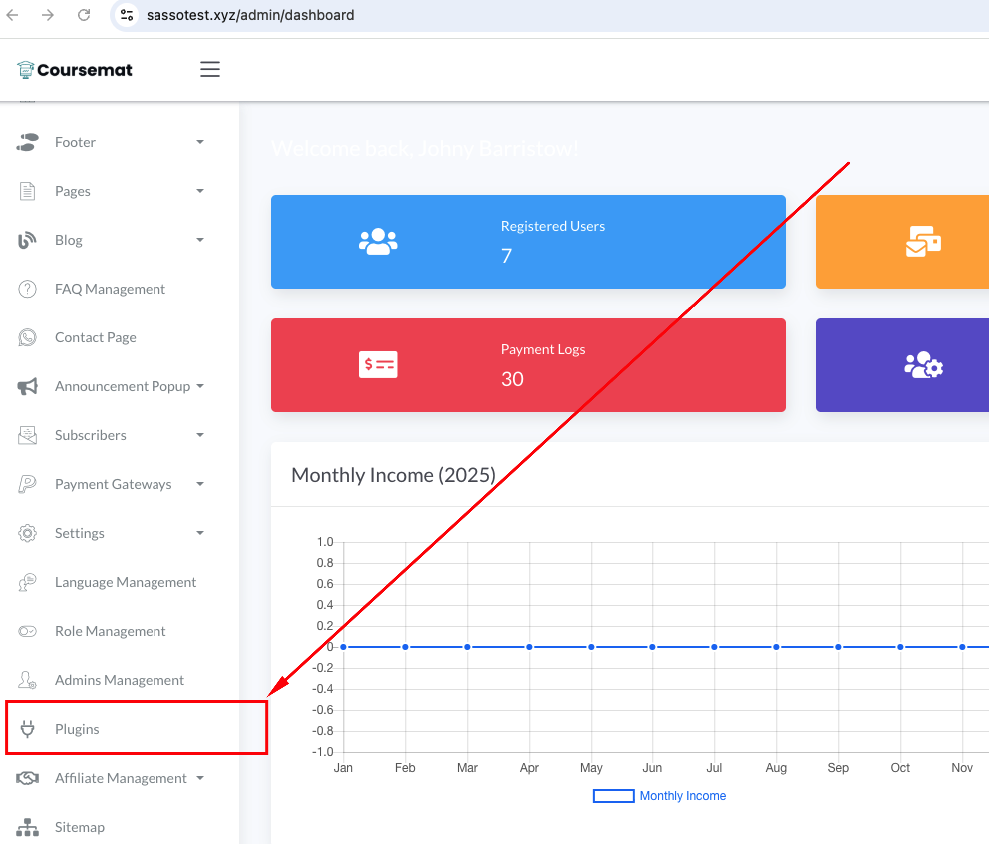
Click on the Plugins menu in the sidebar of the Admin Dashboard.
Screenshot:
-
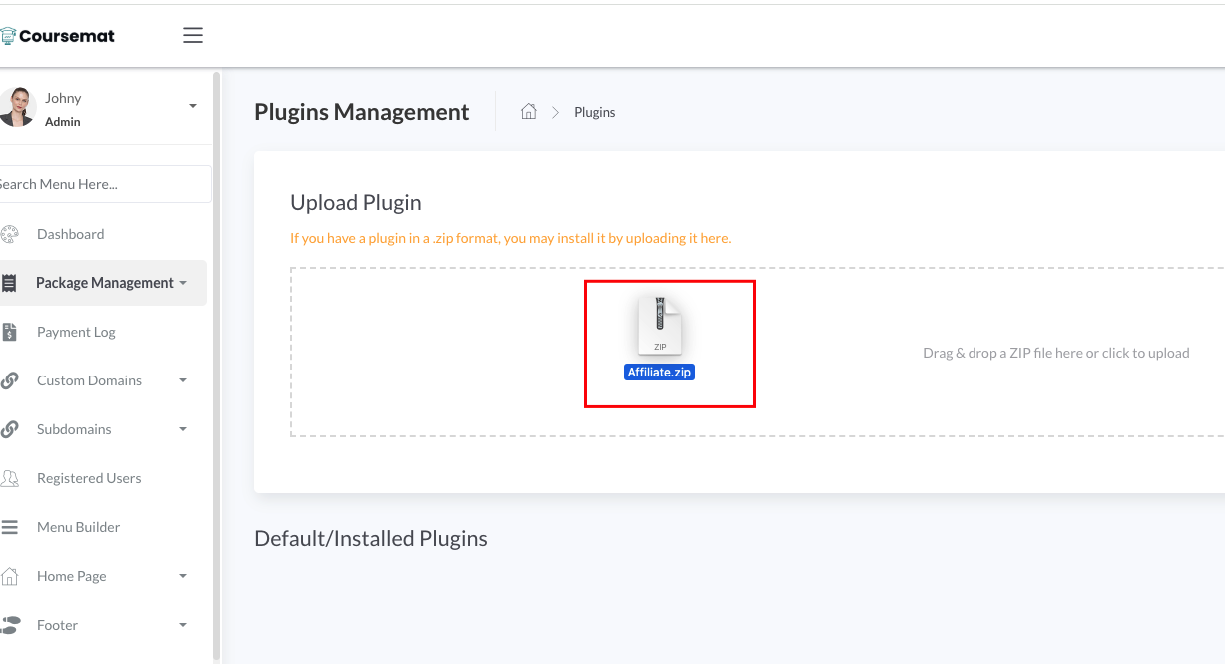
In the Upload Plugin section, upload the Affiliate.zip file.
Screenshot:
-
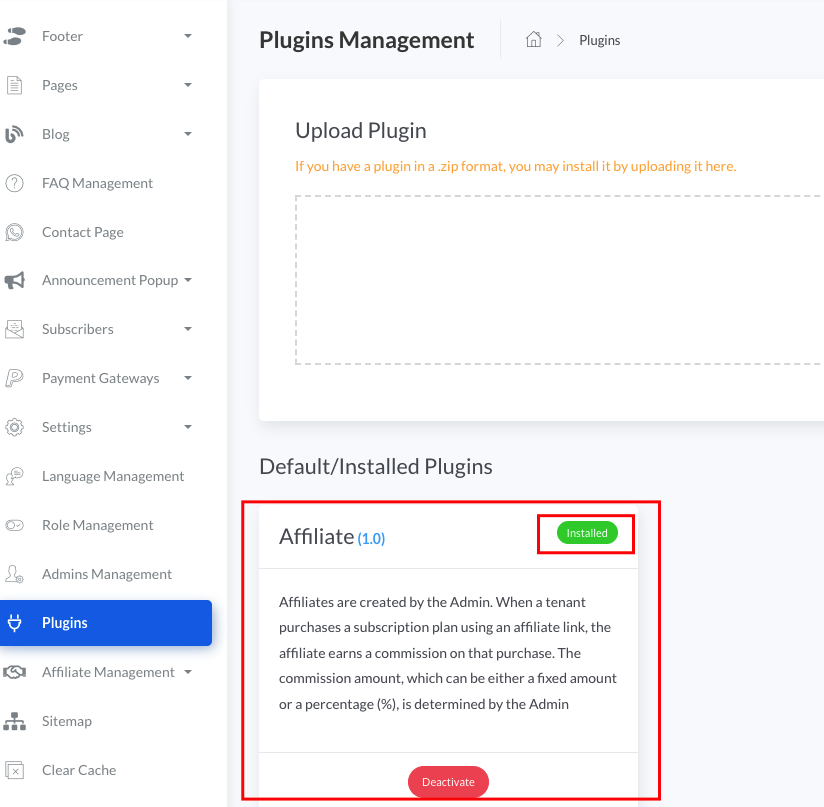
Once the upload is completed, the plugin will be listed as Installed.
Screenshot:
-
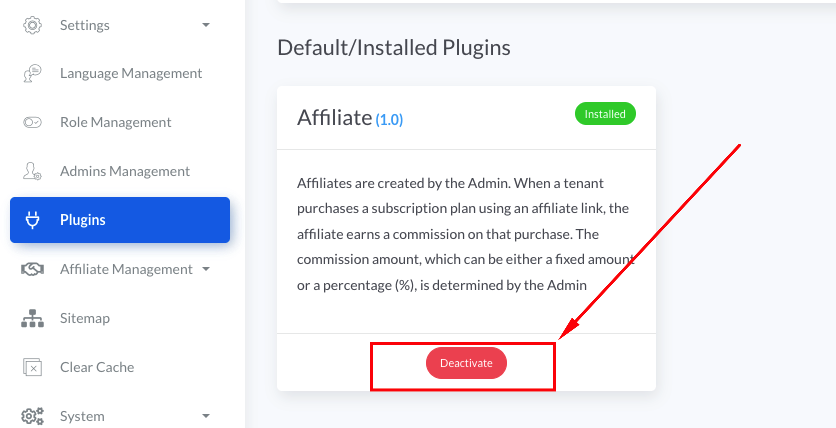
You can activate or deactivate the plugin at any time.
Screenshot:
Affiliate Plugin / Addon Features Guide
Affiliate Management from Admin
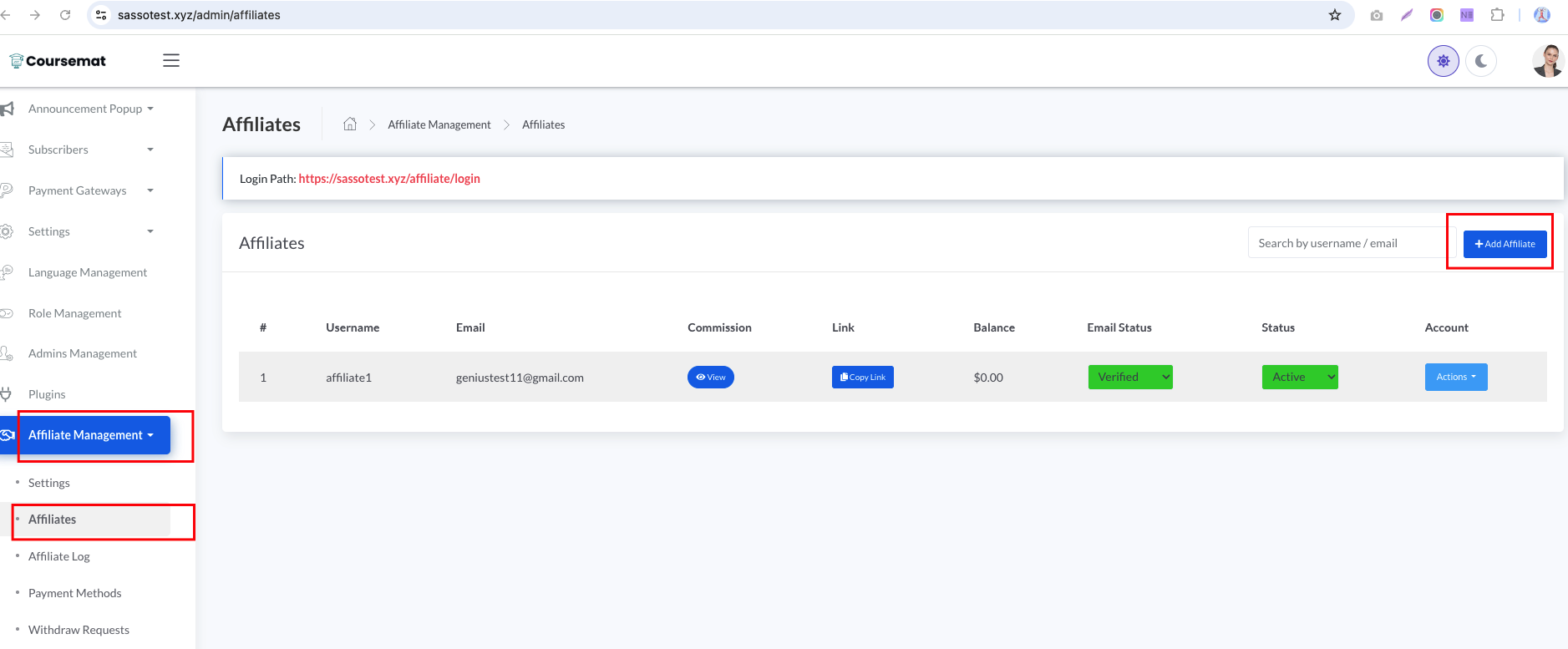
From this section, the Admin can manage all affiliates — including adding new affiliates, editing details, deleting accounts, resetting passwords, and performing secret logins.
Advanced Commission Settings
a) Default Commission Settings
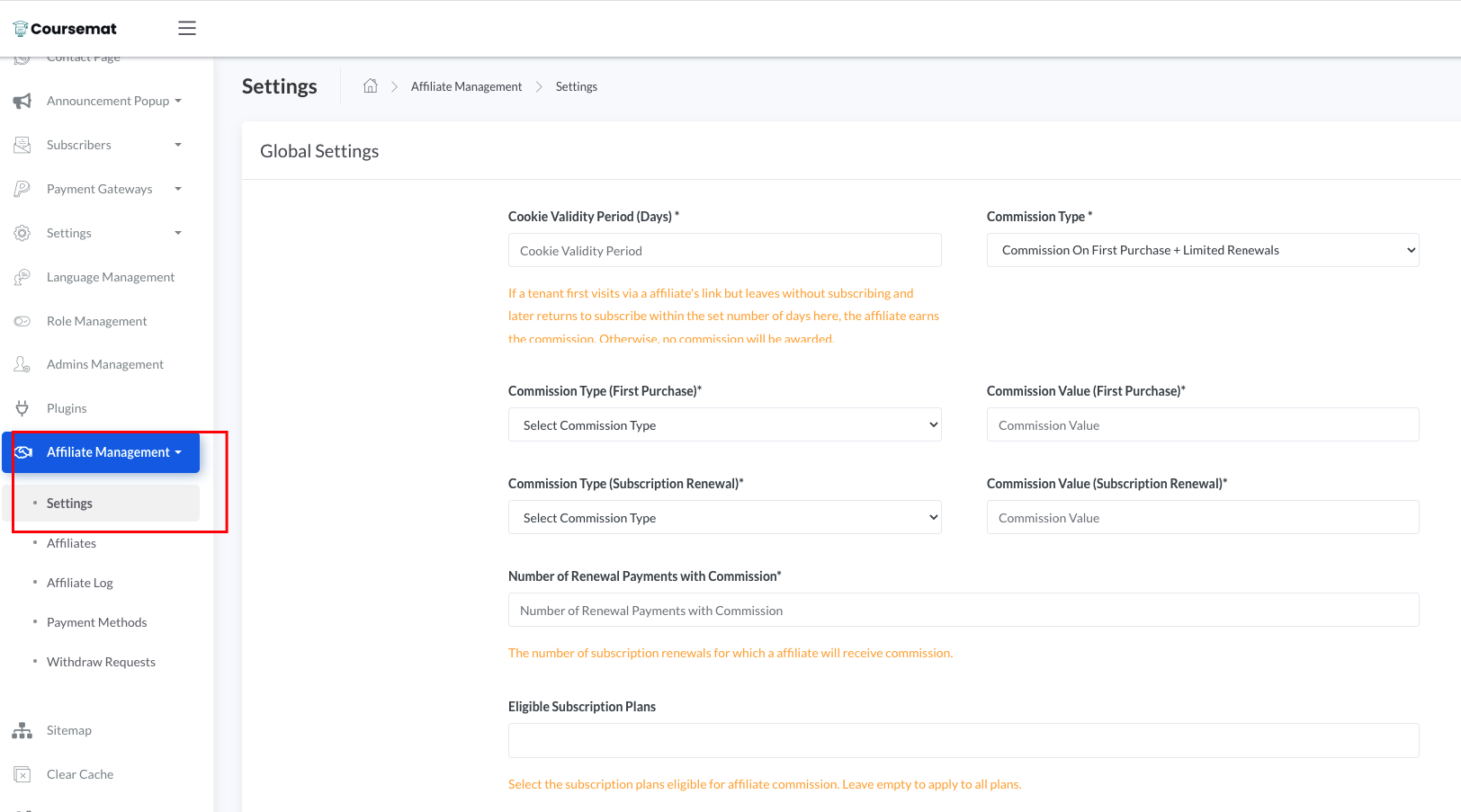
The Admin can configure default commission rates from the Affiliate Management > Settings page.
These default rates will be applied to all affiliates unless individually overridden.
b) Custom Commission Settings for Individual Affiliates
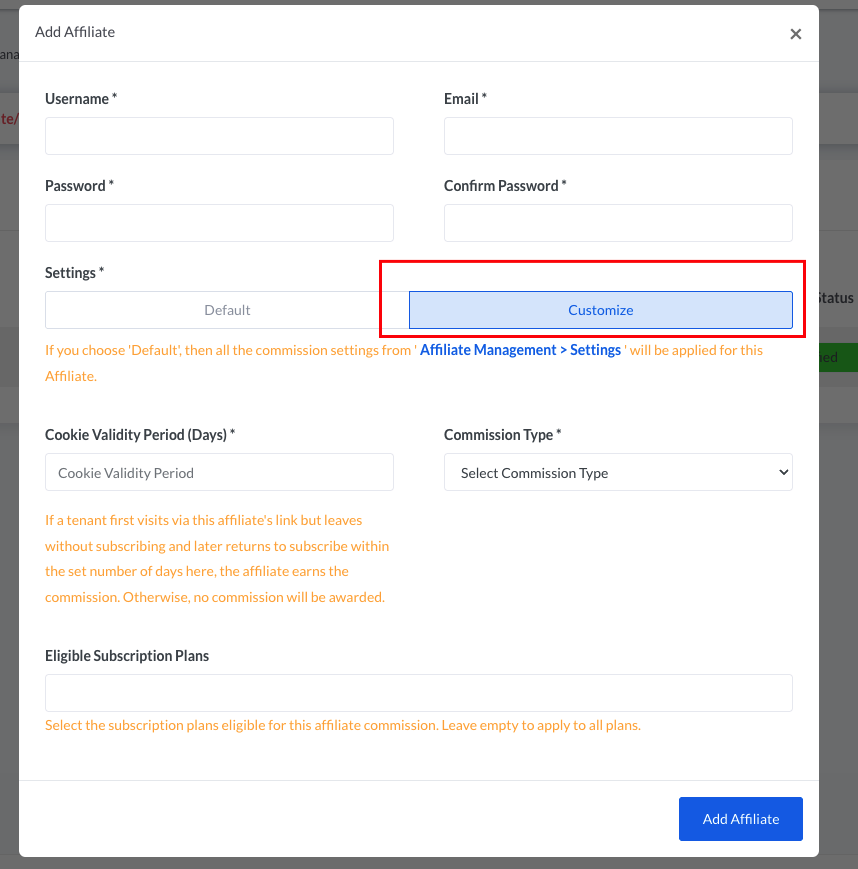
The Admin can also set custom commission rates for specific affiliates when adding or editing an affiliate profile.
c) Introduction to each commission settings input fields:
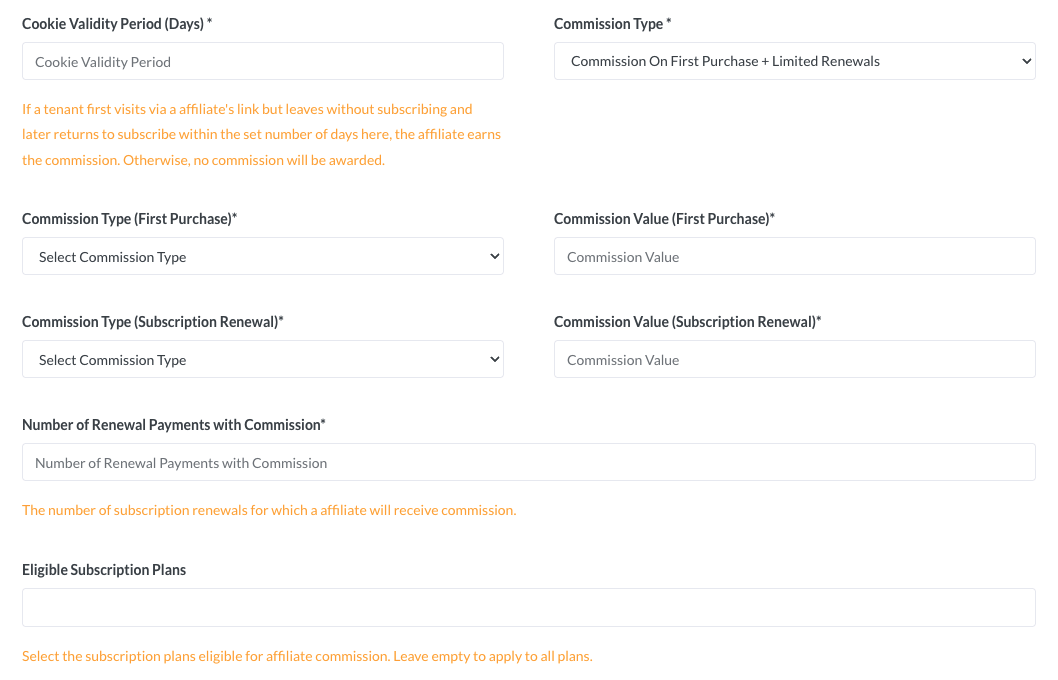
Below is the description of all the Input Fields of Advanced Commission Settings Form
1) Cookie Validity Period (Days)*
Specifies how long (in days) the affiliate tracking cookie remains valid after a visitor clicks an affiliate link.
How it works:
If a tenant first visits via an affiliate link but does not subscribe immediately, the affiliate will still earn commission if the tenant subscribes within this period. After the period expires, no commission will be awarded.
2) Commission Type*
Determines the overall commission structure for the affiliate.
Available options:
Commission on First Purchase — Commission is given only for the tenant’s first subscription payment.
Commission on First Purchase + All Renewals — Commission is given for the first purchase and all future subscription renewals without limit.
Commission on First Purchase + Limited Renewals — Commission is given for the first purchase and a limited number of renewals.
3) Commission Type (First Purchase)*
Selects how commission for the first purchase is calculated.
Options:
Fixed Amount — A set amount per qualifying first purchase.
Percentage — A percentage of the first purchase amount.
4) Commission Value (First Purchase)*
Specifies the actual commission rate or amount for the first purchase.
If Fixed Amount is selected, enter a number (e.g., 10 for $10).
If Percentage is selected, enter the percentage value (e.g., 20 for 20%).
5) Commission Type (Subscription Renewal)*
Selects how commission for subscription renewals is calculated (if applicable).
Options:
Fixed Amount — A set amount for each renewal payment.
Percentage — A percentage of the renewal payment amount.
6) Commission Value (Subscription Renewal)*
Specifies the commission rate or amount for subscription renewals.
If Fixed Amount is selected, enter the amount (e.g., 5 for $5).
If Percentage is selected, enter the percentage (e.g., 10 for 10%).
7) Number of Renewal Payments with Commission*
Defines the number of renewal payments for which the affiliate will receive commission.
Applies only when Commission Type is set to Commission on First Purchase + Limited Renewals.
Example: If set to 3, the affiliate earns commission for the first purchase plus the next three renewals.
8) Eligible Subscription Plans
Select the subscription plans eligible for affiliate commission.
Options:
Leave empty to apply to all subscription plans.
Enter specific plan names to limit commissions to certain plans.
Withdrawal System
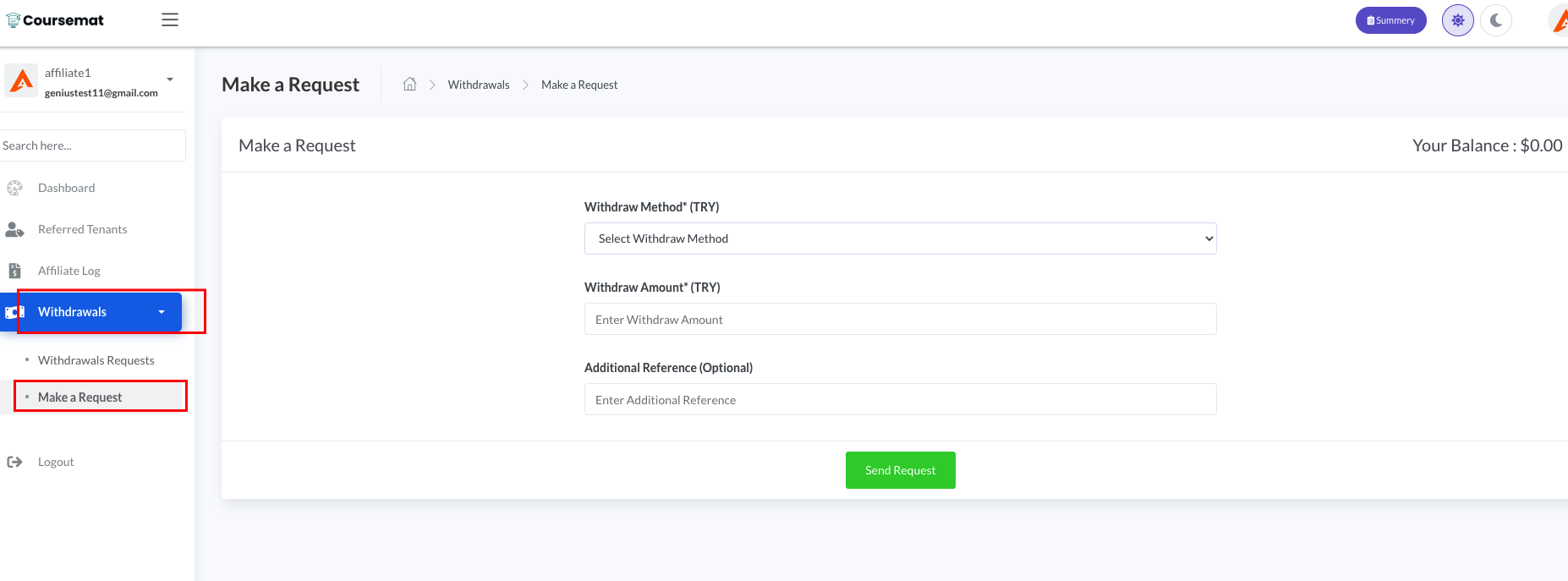
Affiliates can request a withdrawal of their earnings from Withdrawals > Make a Request.
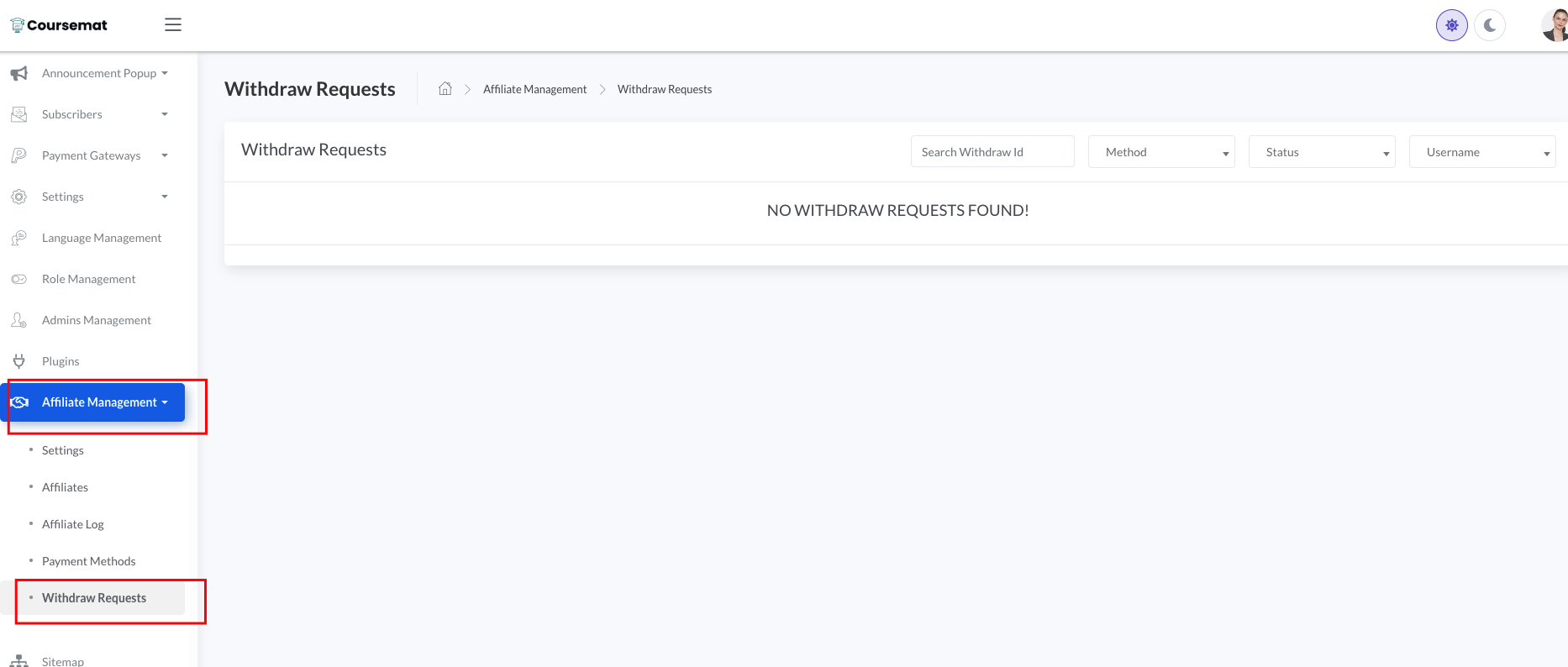
The Admin can review all withdrawal requests from the Affiliate Management > Withdraw Requests page.
The Admin must manually transfer the payment to the affiliate and then update the request status in the system.
Withdraw Methods & Form Builder
In the withdrawal request form, affiliates can select a Withdraw Method.
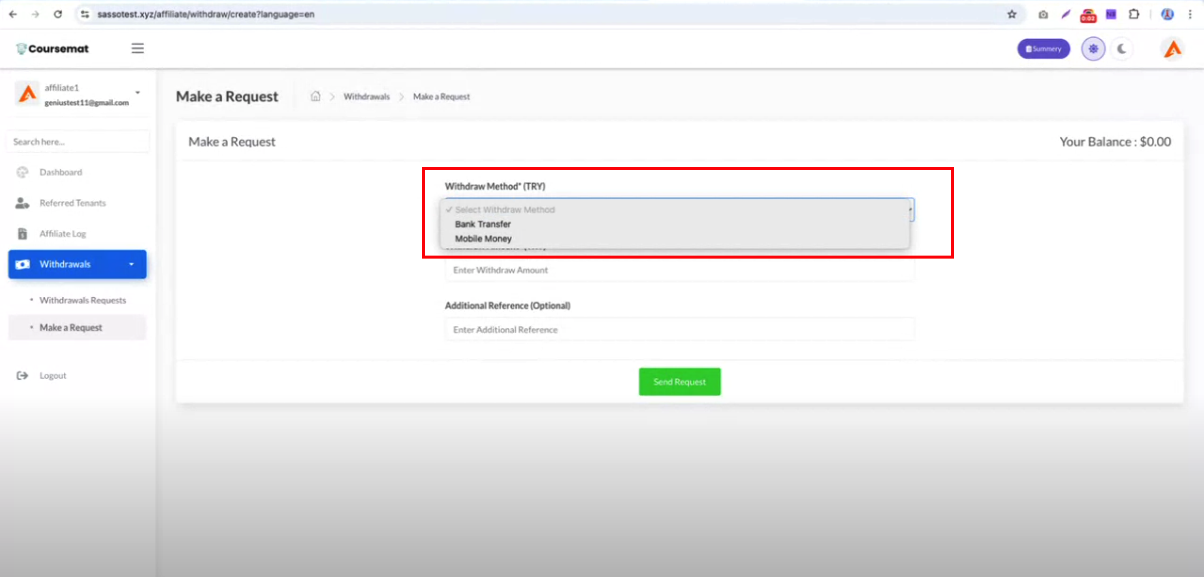
The Admin can add multiple withdrawal methods (e.g., Bank Transfer, Mobile Money) for affiliates to choose from.
Additionally, the Admin can create custom form fields for each method using the form builder.
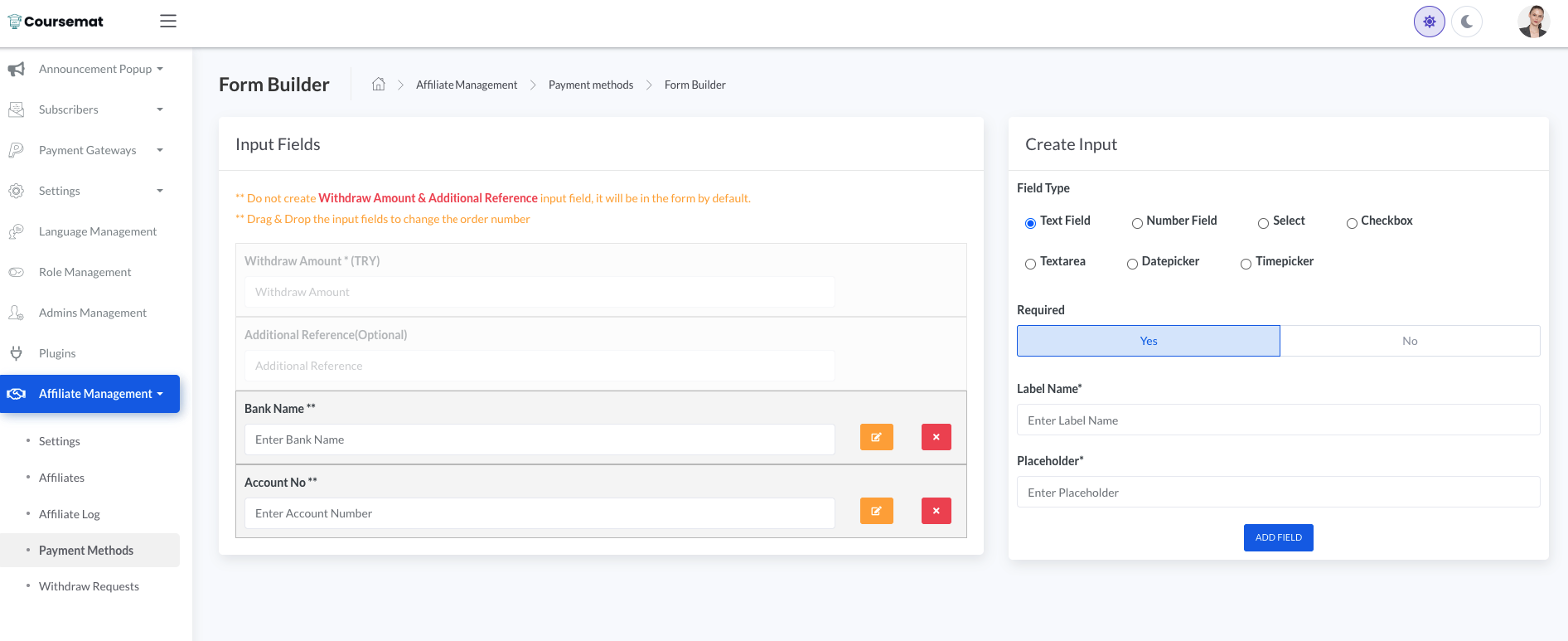
Example:
• For the Mobile Money method, the Admin might add a Mobile Number input field.
• For the Bank Transfer method, the Admin might add fields like Bank Account Number and Bank Name.
When an affiliate selects a withdrawal method (e.g., Bank Transfer or Mobile Money), the corresponding input fields for that method will automatically appear in the withdrawal request form.
Withdrawal Charges
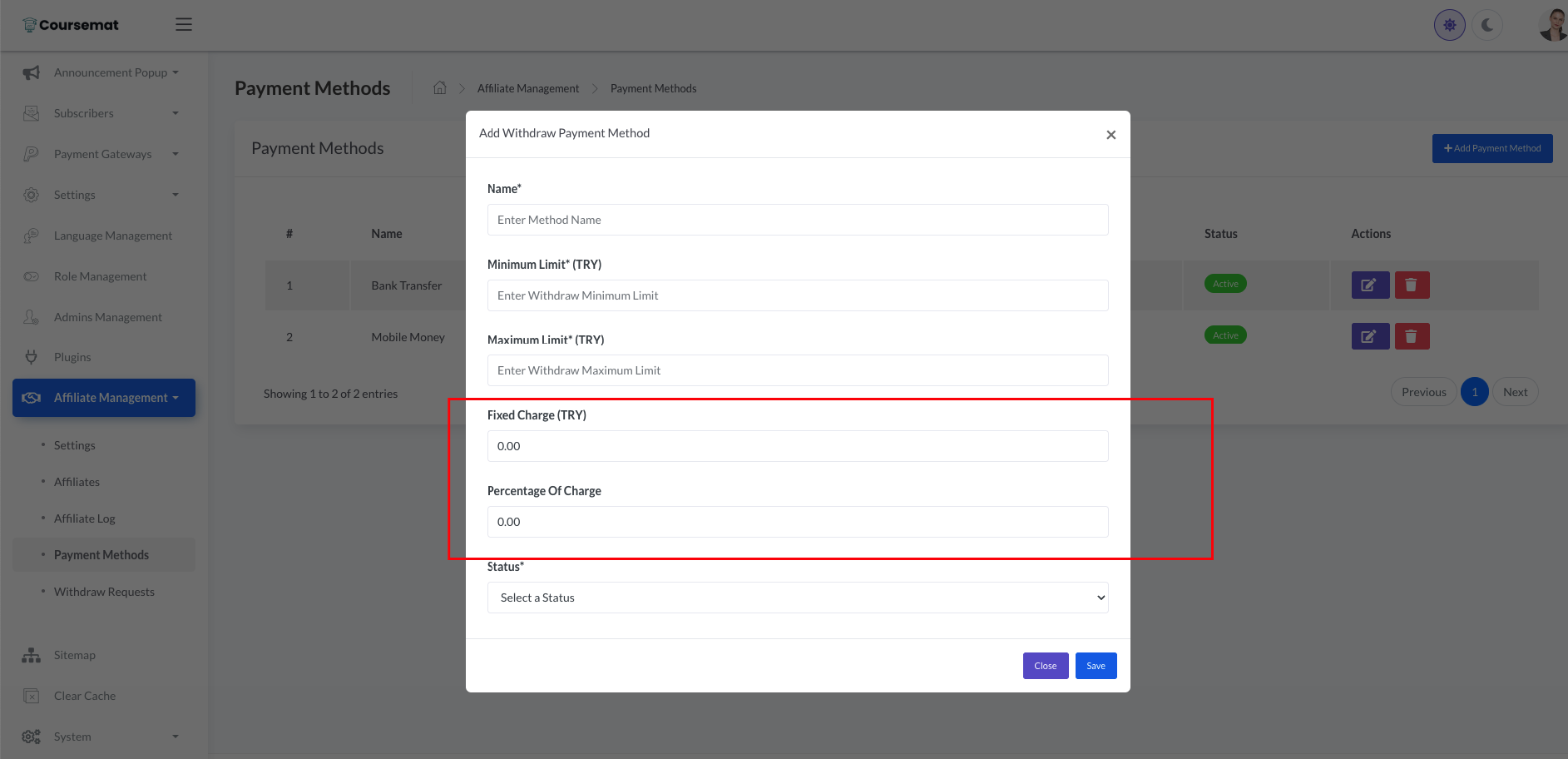
The Admin can apply charges (both fixed amount and percentage) for each withdrawal method.
These charges will be deducted automatically on the withdrawal amount when an affiliate submits a withdrawal request.
Affiliate Dashboard
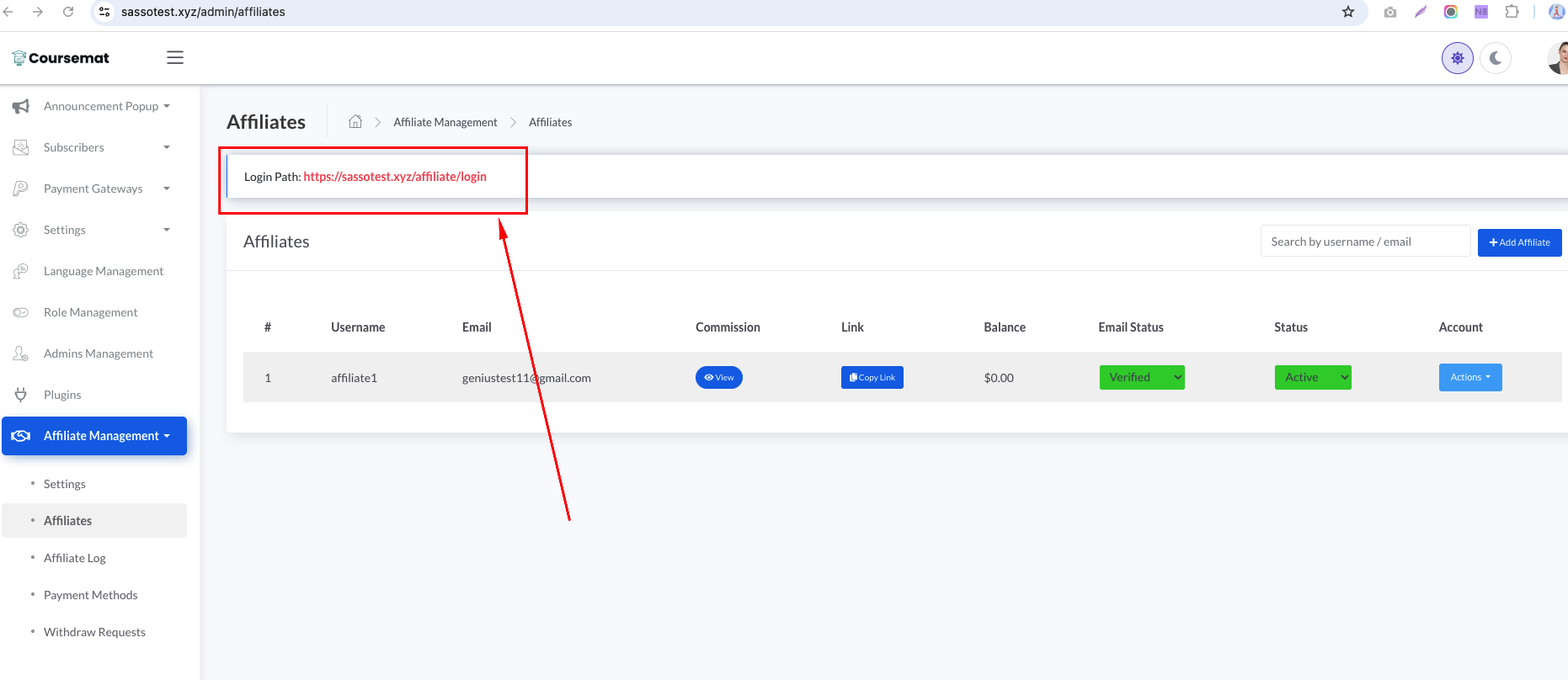
The added Affiliates can login from this URL - https://sassotest.xyz/affiliate/login
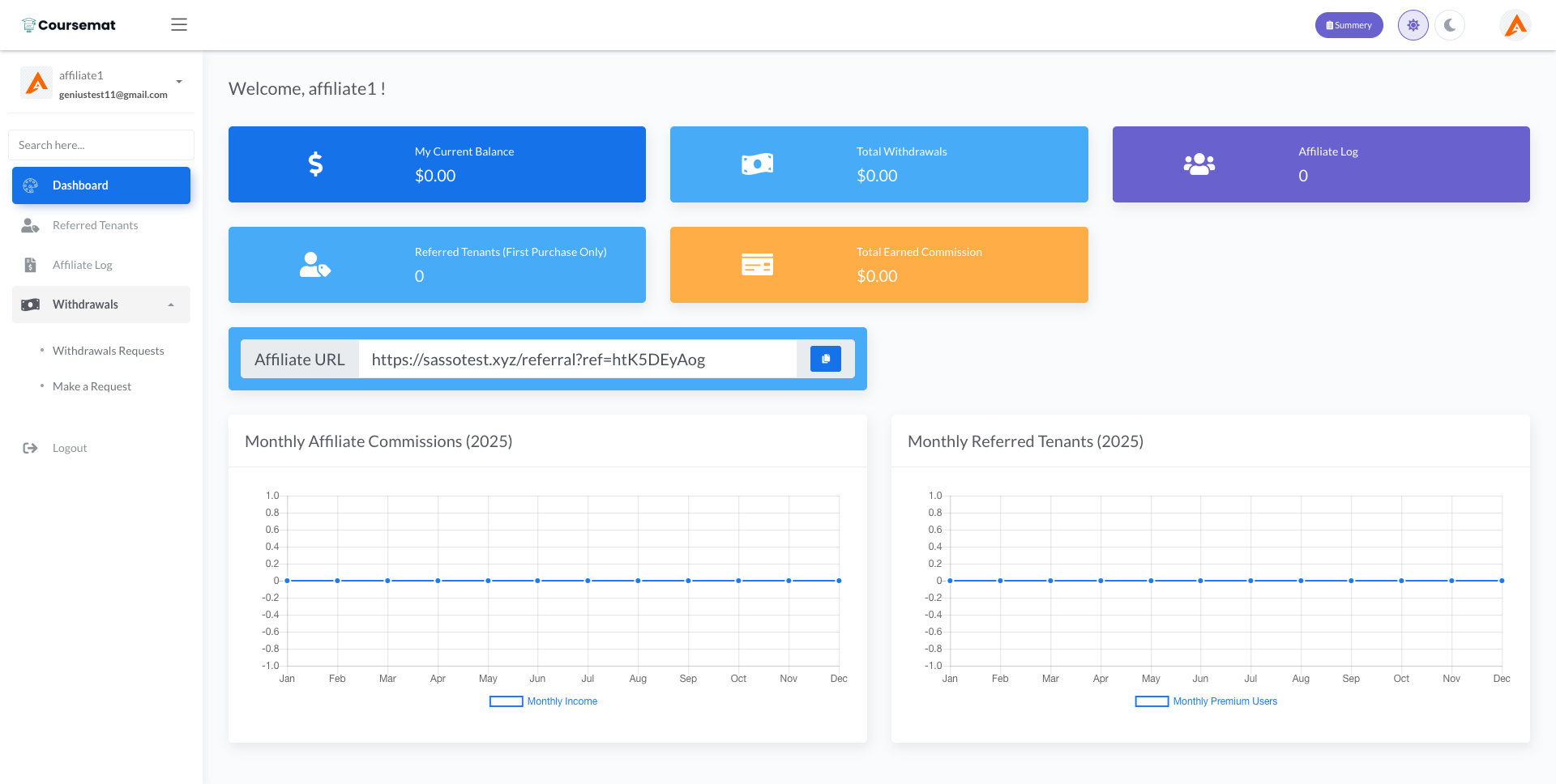
After login they will be able to access the Dashboard
From the Dashboard, Affiliates can view all thier affiliate log, referred Tenants, earned commissions, make withdrawal requests, check withdraw log, copy sale link etc...
Support Desk
Please visit https://kreativdev.freshdesk.com/ and create a support ticket there.
Support for our items includes:- Fixing bugs and reported issues originating from our code.
- Responding to questions or problems regarding the item and its features.
Before submitting a question, please check the live demo, documentation, and item description page — you might find the answer much faster than waiting for a reply.
- Customization services. Any request for features not shown in the live demo, preview images, item description, or title will be considered a customization request.
- Support for third-party software or plugins.
- Issues caused by customized code will be considered outside the scope of support.
Please Note: You have purchased a very affordable script — not the services of a full-time web design agency. Occasionally, we may help with small tweaks depending on the time required. Please be patient, polite, and respectful in your communication.
Support Response Time & Weekends:
Our official support response time is up to 2 business days (as per Envato policy).
View screenshot.
In most cases, we respond within 24 hours. However, during high ticket volumes or government holidays, it may take longer.
Our Weekends:
- One week: Thursday & Friday
- Following week: Friday only
Installation Support:
We provide free installation support only for cPanel-based hosting (Apache).
Please create a support ticket here for cPanel installation:
https://kreativdev.freshdesk.com/
For installation on other hosting environments, a service charge will apply.
You may contact us on Telegram for hosting types other than cPanel:
Telegram Username: KreativDev
Note: Telegram is not used for general support.
Customization Service Contact
For custom development or modifications, please contact us on Telegram:
Telegram Username: KreativDev
When contacting us, please include your requirements in detail in your first message (instead of simply saying “Hi” or “Hello”).
Note: Telegram is not used for general support.