Estaty - Real Estate Flutter App
A modern, feature-rich real estate mobile application built with Flutter. Estaty provides an elegant platform for browsing, searching, and exploring property listings with a beautiful user interface.
🏠 Features
Home Screen
- Custom Slider with Color Transitions: A unique home slider that smoothly transitions between images with dynamic background colors. The slider uses PageView for smooth infinite scrolling and color interpolation for seamless visual effects.
- Category Filter System: Interactive category chips that allow users to filter listings by property type (Apartment, House, Duplex, Villa, etc.)
- Search Functionality: Quick search bar for finding properties
- Multiple Property Sections: "Explore Category", "Most Popular Listing", and "Latest Projects"
- Language Selection: Multi-language support with custom language selector dialog
Listings
- Staggered Grid Layout: Beautiful masonry grid view for browsing all properties
- Detailed Property Cards: Each card displays property image, category badge, title and address, price (with previous price strikethrough), property details (square footage, bedrooms, bathrooms), and wishlist toggle
- Category Filtering: Real-time filtering by property categories
- Empty State Handling: User-friendly messages when no properties match the filter
UI Components
- Custom Icon Button Widget: Reusable icon button with rotation support and customizable colors
- Horizontal Listing Cards: Rich cards with gradient overlays and property information
- Bottom Navigation: Clean navigation between Home, Listings, Projects, and Profile sections
- Custom App Bar: Pinned app bar with notifications and language switcher
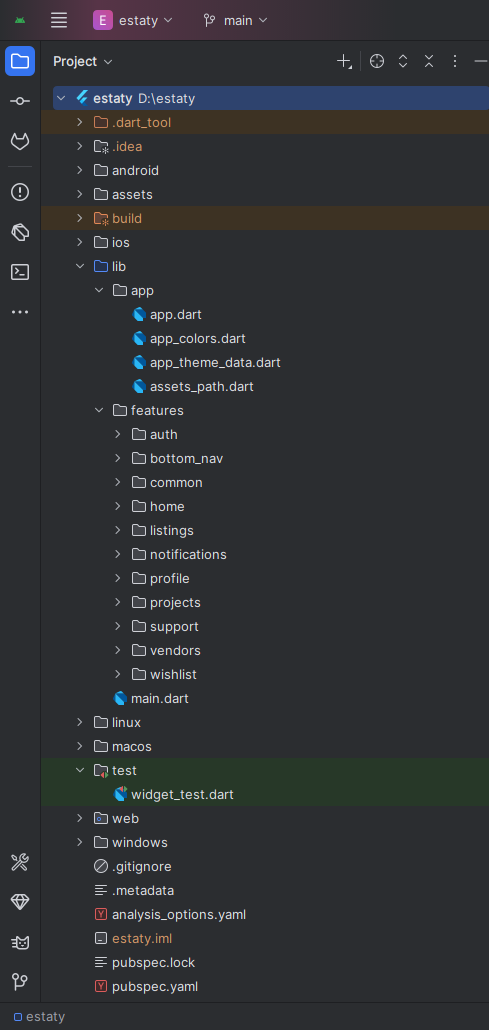
Folder Structure
All you need to follow the lib(Library) Folder for any logical and UI changes in this project.
lib/
├── main.dart
├── app/                      # Core application setup: theme, colors, styles.
└── features/                 # Main feature modules organized by functionality.
    ├── auth/                 # Authentication screens.
    │   └── ui/
    │       └── screens/
    ├── bottom_nav/           # Bottom navigation controller.
    │   └── ui/
    │       └── screen/
    ├── common/               # Shared components across features.
    │   └── ui/
    │       └── widgets/
    ├── home/                 # Home feed with slider and categories.
    │   ├── data/
    │   │   └── models/
    │   └── ui/
    │       ├── screen/
    │       └── widget/
    ├── listings/             # Property listings and details.
    │   ├── data/
    │   │   └── models/
    │   └── ui/
    │       ├── screens/
    │       └── widgets/
    ├── notifications/        # Notification center.
    │   ├── data/
    │   │   └── models/
    │   └── ui/
    │       └── screens/
    ├── profile/              # User profile and settings.
    │   └── ui/
    │       └── screens/
    ├── projects/             # Real estate projects with filtering.
    │   ├── data/
    │   │   └── models/
    │   └── ui/
    │       ├── screens/
    │       └── widgets/
    ├── support/              # Customer support tickets.
    │   └── ui/
    │       └── screens/
    ├── vendors/              # Property vendor/agent information.
    │   └── data/
    │       └── models/
    └── wishlist/             # Saved properties management.
        └── ui/
            └── screens/
Screens (Total: 20+)
AUTH
- Splash Screen
- Login Screen
- Signup Screen
- Forget Password Screen
- OTP Verification Screen
- Reset Password Screen
HOME
- Home Screen (with custom slider, color transitions)
- All Categories Screen
- Bottom Navigation Bar
LISTINGS
- All Listings Screen (staggered grid with filters)
- Listing Details Screen (with image gallery, floor plan)
PROJECTS
- All Projects Screen (with search and filters)
- Project Details Screen (with gallery, floor plan)
- Image Preview Screen (full-screen viewer with zoom)
PROFILE
- Profile Screen
- Edit Profile Screen
- Change Password Screen
OTHER
- Wishlist Screen
- Notifications Screen
- Support Tickets Screen
- Vendors Screen
Requirements
Download and install any one from these IDE (Android Studio, VS Code) on your computer.
- Android Studio: https://developer.android.com/studio
- VS Code: https://code.visualstudio.com/download
Setup Flutter and Dart SDK on your computer if you want to modify the source code
- Flutter SDK: https://docs.flutter.dev/get-started/install
Must install Flutter and Dart plugin on your IDE
Install Flutter on Windows
Install Flutter on Mac
Installation
After downloading file from CodeCanyon you will get a zip file. Extracting the zip file you will get Documentation Folder and ... installable.zip included in there:
- Unzip the source code and open it in your IDE.
- On your IDE find for pubspecs.yaml file then click on pub get on top right side your IDE.
- Please make sure you are using Flutter version minimum 3.30.0
- Open an emulator or connect a real device and then click on Run Button for compile the project.
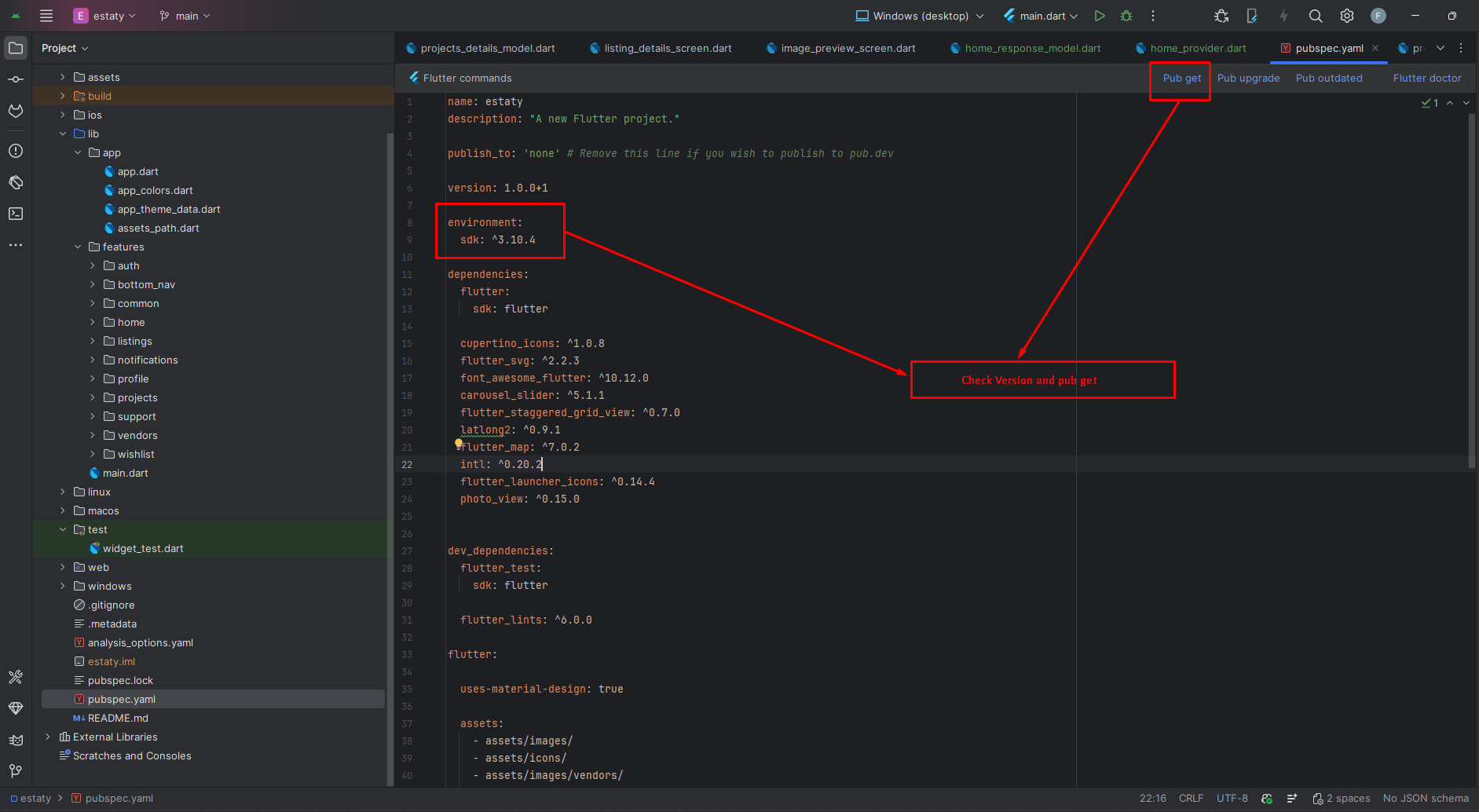
Flutter Packages
UI / Visuals
📁 cupertino_icons: ^1.0.8 >> iOS-style icons (Cupertino widgets)
📁 flutter_svg: ^2.2.3 >> Render SVG images in Flutter
📁 font_awesome_flutter: ^10.12.0 >> Font Awesome icons for Flutter
📁 carousel_slider: ^5.1.1 >> Image carousel/slider widget for property galleries
📁 flutter_staggered_grid_view: ^0.7.0 >> Staggered/masonry grid layouts for property listings
📁 photo_view: ^0.15.0 >> Full-screen image viewer with pinch-to-zoom
📁 flutter_launcher_icons: ^0.14.4 >> Configure app launcher icons
Maps / Location
📁 flutter_map: ^7.0.2 >> Interactive map widget for property locations
📁 latlong2: ^0.9.1 >> Latitude/longitude calculations
Utilities
📁 intl: ^0.20.2 >> Date/number formatting & internationalization
Setup Application
Change App Name
Android
- Open
<project>/android/app/src/main/AndroidManifest.xml - Update the
android:labelvalue inside the<application>tag:
<application
    android:label="Evento"
    android:icon="@mipmap/ic_launcher">

</application>
iOS
- Open
<project>/ios/Runner/Info.plist - Change
CFBundleName:
<key>CFBundleName</key>
<string>Evento</string>
Optional: Some setups also use CFBundleDisplayName for the home screen name.
Reinstall after rename
- Uninstall the previously installed app from the device/emulator, then rebuild and run.
- Optional (Android): uninstall via package id:
Change App Launcher Icons (flutter_launcher_icons:)
- Update the
flutter_launcher_iconsconfig in yourpubspec.yaml(package already added):
flutter_launcher_icons:
  android: true
  ios: true
  image_path: "assets/icons/icon.png"
  adaptive_icon_foreground: "assets/icons/icon.png"
  adaptive_icon_background: "assets/icons/background.png"
- Place your icons at:
assets/icons/icon.png(square, 1024x1024 recommended)assets/icons/background.png(solid/simple background for Android adaptive icon)
- Generate icons:
- Rebuild the app. If icons don't update, clear build caches and run again.
Notes
- Android uses adaptive icons; prefer a simple, solid background and a centered foreground with padding.
- iOS uses a single raster icon automatically generated from
image_path(adaptive fields are ignored on iOS). - The runtime splash logo is loaded from the Admin Panel via API; launcher icons remain static and are generated with this package.
App Logo & Branding
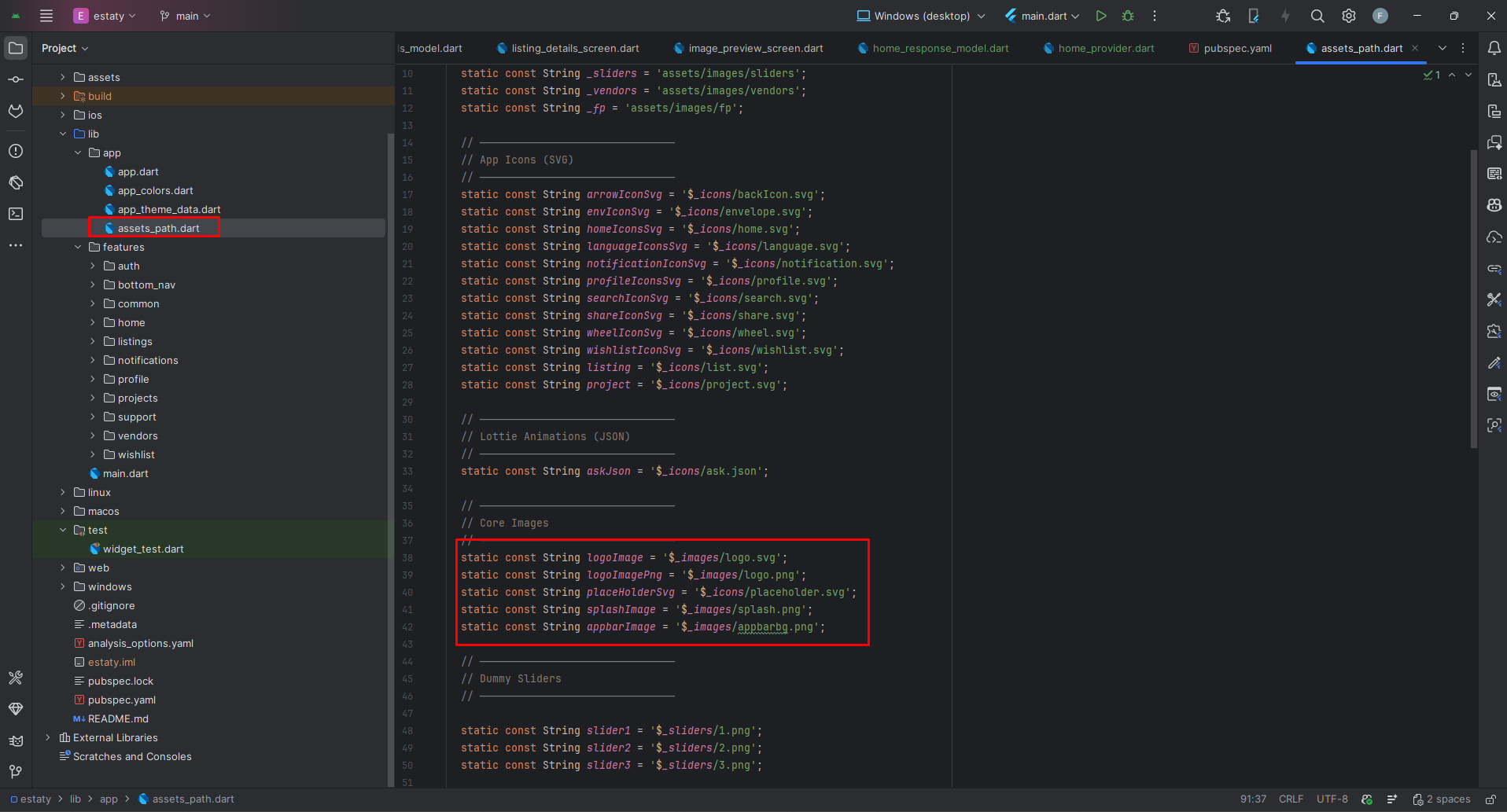
All app logos, icons, and images are defined in lib/app/assets_path.dart. You can customize them by updating the file paths:
- Core Images:
logoImage: SVG logo (assets/images/logo.svg)logoImagePng: PNG logo (assets/images/logo.png)splashImage: Splash screen background (assets/images/splash.png)appbarImage: App bar background (assets/images/appbarbg.png)placeHolderSvg: Placeholder for missing images
- Navigation Icons:
homeIconsSvg,listing,project,profileIconsSvg
- Common Icons:
notificationIconSvg,searchIconSvg,shareIconSvgwishlistIconSvg,languageIconsSvg,wheelIconSvgarrowIconSvg,envIconSvg
- Lottie Animations:
askJson: Support/help animation
Replace the files in assets/images/ and assets/icons/ folders with your own branding assets. Keep the same file names or update the paths in assets_path.dart.
Theme Colors
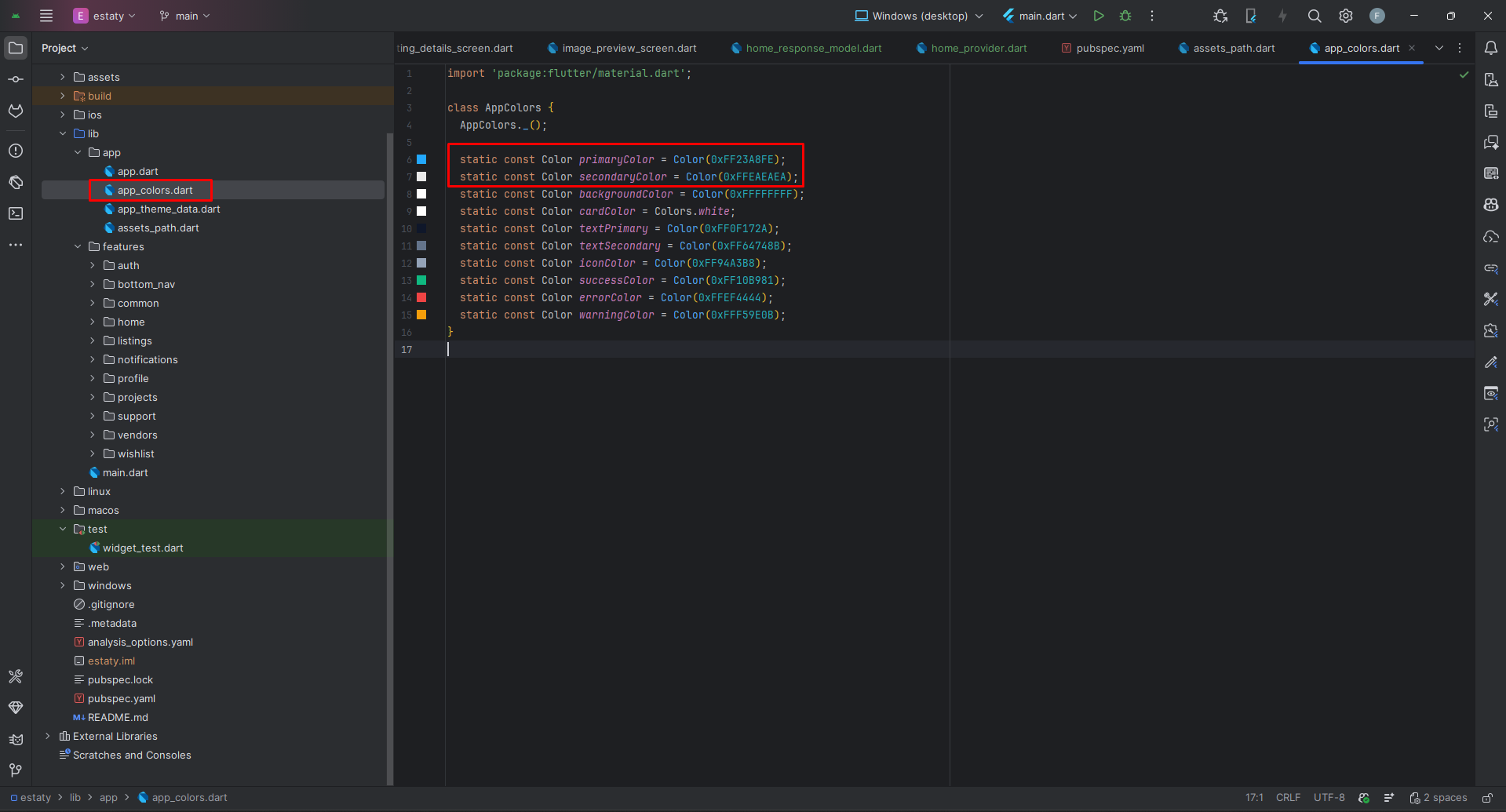
All app colors are defined in lib/app/app_colors.dart. Current color palette:
- primaryColor:
Color(0xFF23A8FE)- Main brand color (blue) - secondaryColor:
Color(0xFFEAEAEA)- Light gray - backgroundColor:
Color(0xFFFFFFFF)- White - cardColor:
Colors.white- Card backgrounds - textPrimary:
Color(0xFF0F172A)- Dark text - textSecondary:
Color(0xFF64748B)- Gray text - iconColor:
Color(0xFF94A3B8)- Icon color - successColor:
Color(0xFF10B981)- Green for success - errorColor:
Color(0xFFEF4444)- Red for errors - warningColor:
Color(0xFFF59E0B)- Orange for warnings
The app theme uses Jakarta font family and is configured in lib/app/app_theme_data.dart.
Tip: After changing colors, hot restart the app to see the changes.
Build & Run App
Run the Application:
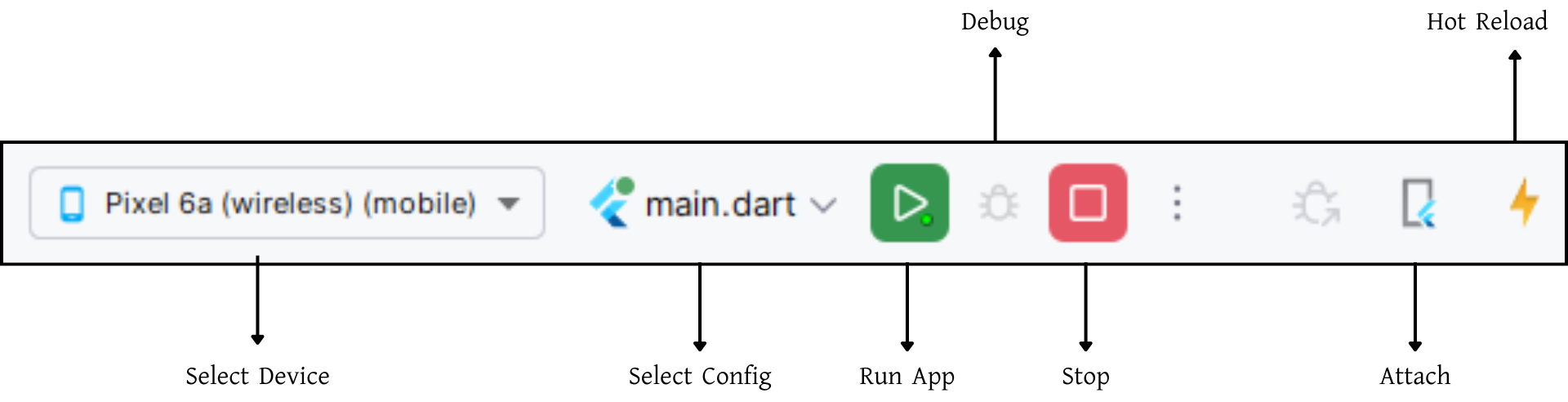
- In the target selector, select an Android device for running the app. If none are listed as available, select Tools> Android > AVD Manager and create one there. For details, see Managing AVDs.
- If you don't use Android Studio, Vs Code or IntelliJ you can use the command line to run your application using the following command:
Build Release & Publish App
1. Build Release Apk or other file type as your need.
After making all your changes and customizations, save the project. Then open the console, navigate to your project folder, and execute the following command:
⚡ For Play Store deployments, it’s recommended to use App Bundles or split APKs to reduce the final APK size.
Build and Install App:
• Generate App Bundle (recommended):
• Split APKs per ABI:
Signing the App (required for Google Play):
Before uploading, you must sign your app. Generate a signing key by running:
Create a key.properties file inside android/ folder with the following content:
keyPassword = password from previous step
keyAlias = key
storeFile = location of the keystore file (e.g. /Users/username/key.jks)
Then update android/app/build.gradle with:
def keystoreProperties = new Properties()
keystoreProperties.load(new FileInputStream(keystorePropertiesFile))
signingConfigs {
release {
keyAlias keystoreProperties['keyAlias']
keyPassword keystoreProperties['keyPassword']
storeFile file(keystoreProperties['storeFile'])
storePassword keystoreProperties['storePassword']
}
}
buildTypes {
release {
signingConfig signingConfigs.release
}
}
2. Android (Play Store)
Follow the official guidelines to publish your signed app or app bundle to the Google Play Store:
https://flutter.dev/docs/deployment/android3. iOS (App Store)
Follow the official guidelines to publish your app to the Apple App Store:
https://flutter.dev/docs/deployment/iosRun flutter build apk --release for Android.
Run flutter build ios --release for iOS.
Follow Flutter docs for publishing to Play Store / App Store.
Support
📩 For support, customization, or queries, contact us via email.